We put these VPNs to the test to find out which is the best!


There are a lot of components we look at when comparing a VPN, but in general terms, we look at the number and types of features, how easy it is to download and use, how reliable the service is and how effective the customer support is, and if the price matches the service.
This chart gives a general look at those components. Some VPNs are very similar, in which case it's best to continue reading to each section to learn more.
| VPN vendor |
|
|
|---|---|---|
| Download speed reduction | 27% (UK) | 10% (UK) |
| Upload speed reduction | 92% (FRA) | 14% (FRA) |
| Ping time to google.com | 134ms | 2ms |
| Average time to connect (sec.) | 9ms | 9ms |
| Unblock successful for |



|




|
| Visit Site | Visit Site |
Speed determines how fast content uploads, so if you're torrenting or streaming, you want the speed to be somewhat identical to your regular internet speed. Since a VPN encrypts your data, it usually takes a bit longer to send your data back and forth, which can slow down your connection. However, if your ISP deliberately slows down your connection (also known as throttling) a VPN might increase your internet speed. Testing a VPN is somewhat pointless because new servers pop up and affect speed. Your speed can also differ according to your location, so your speed test might not match ours. Having said that, we tested the speed in numerous locations to provide you with the average.
| VPN vendor |
|
|
|---|---|---|
| Server Locations | 30 | 9485 |
| Server Countries | 21 | 137 |
| IP Addresses | 30 | 9,531+ |
| Dynamic Server Switching | ||
| Visit Site | Visit Site |
The ratio of servers to countries is an important factor to look at when choosing a VPN. Only paying attention to location or number of servers can get you in trouble. More servers generally means faster speeds, but if VPN X has a few more servers than VPN Y but twice as many users, VPN X will typically have slower speeds. Ideally, you want a VPN that has a lot of servers in every location. This way you won’t have to worry that server/country that you want will be overburdened and running slow
| VPN vendor |
|
|
|---|---|---|
| Email Response Time | 3 | |
| 24/7 Support |  |
|
| Live Chat | |
|
| Knowledge Base | |
|
| Video Tutorials | |
|
| Visit Site | Visit Site |
We personally test the customer support team of every VPN we review. This means asking technical question through the live chat feature (where applicable) and measuring the response time for email questions. Whether you need to connect to a specific server, change your security protocol, or configure a VPN on your router, finding a VPN with quality customer support should be important to you.
You can use BulletVPN on 6 different devices simultaneously, so you’ll have no issues watching your favorite show on your Roku, even as you get some work done on your laptop. I connected the VPN on three of my devices – cell phone, laptop, and tablet – simultaneously and experienced no lag or interrupted connections.
If you happen to own more than 6 devices and require an additional connection, CyberGhost provides an excellent solution with its offer of up to 7 simultaneous connections. Furthermore, this VPN service supports routers, enabling you to connect an unlimited number of devices using a single offer.
BulletVPN offers a great advantage in that it can work seamlessly with various devices and operating systems, allowing for maximum flexibility and accessibility. On top of applications for Windows and Mac computers, it can be installed on Android devices, iOS devices, Linux, routers, streaming TV devices, and gaming consoles. The service’s website provides numerous setup guides that can assist you in manually configuring it.
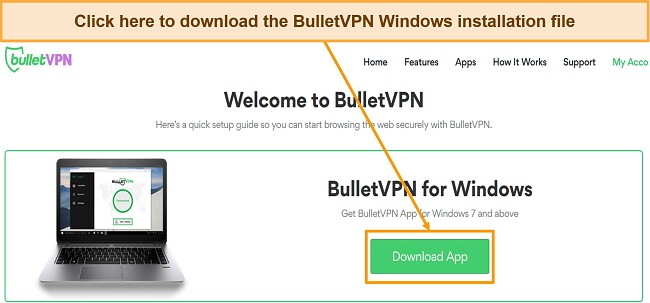
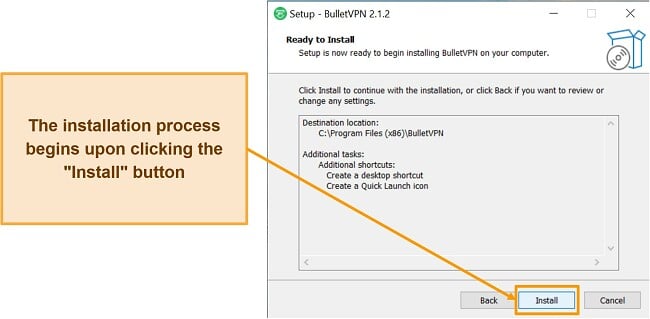
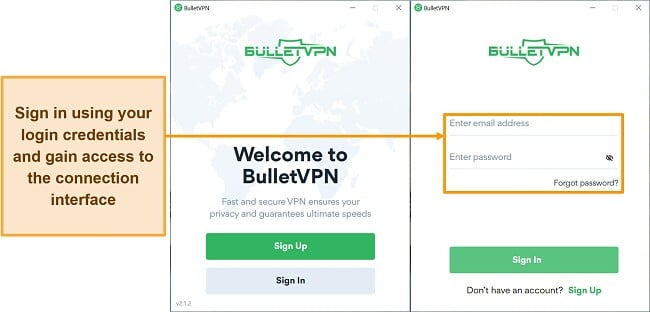
Installation of BulletVPN is very easy. I simply downloaded the app from the website, and it was easy to install with just one click. It took only a few minutes to finish installing, and then I could log in and start using the service.
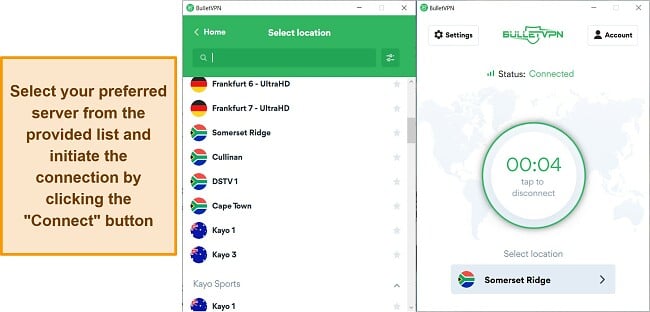
BulletVPN’s desktop app looks quite similar to its website, making it easy for users to navigate. Once you log in, you’ll notice a world map with a big “Connect” button right in the center. By clicking on this button, the app automatically connects you to the best server available, showing you which server you’re connected to at the bottom of the screen.
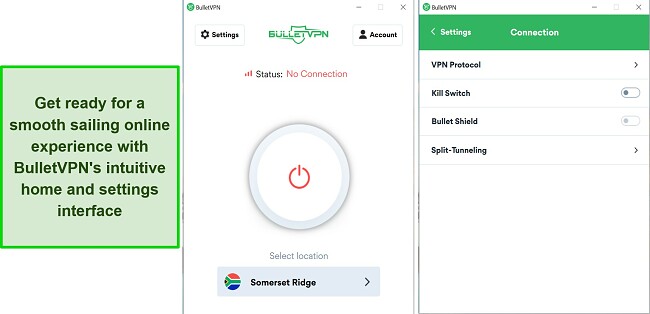
On the left side of the screen, there’s a gear-shaped settings button. When you click on it, you’ll see four easy-to-navigate options designed for average VPN users: Connection (for managing your connections), Tools (for helpful utilities), Support (for assistance when needed), and Diagnostics (for troubleshooting issues).
If you click on “Connection,” you’ll find settings to turn on or off features like the Kill Switch, BulletShield, and Split Tunneling. In this section, you can also change your device’s VPN protocol, which determines how your data is encrypted and transmitted through the VPN.
NordVPN delivers an easy user experience by combining multi-device support with practical features like split tunneling, Threat Protection Lite, and seamless setup across desktop, mobile, and browser extensions.
NordVPN lets you connect up to 10 devices simultaneously, which is a generous connection allowance. I connected the VPN on my Android phone, Windows desktop, Windows laptop, and smart TV simultaneously, and the connection was fast and stable on all devices.
For even broader coverage, you can set up a VPN connection on your router. This way, every device on your network is protected using just one slot. Plus, NordVPN’s router guides simplify setup on popular routers like ASUS and DD-WRT, letting you secure smart home gadgets that don’t support VPNs directly.
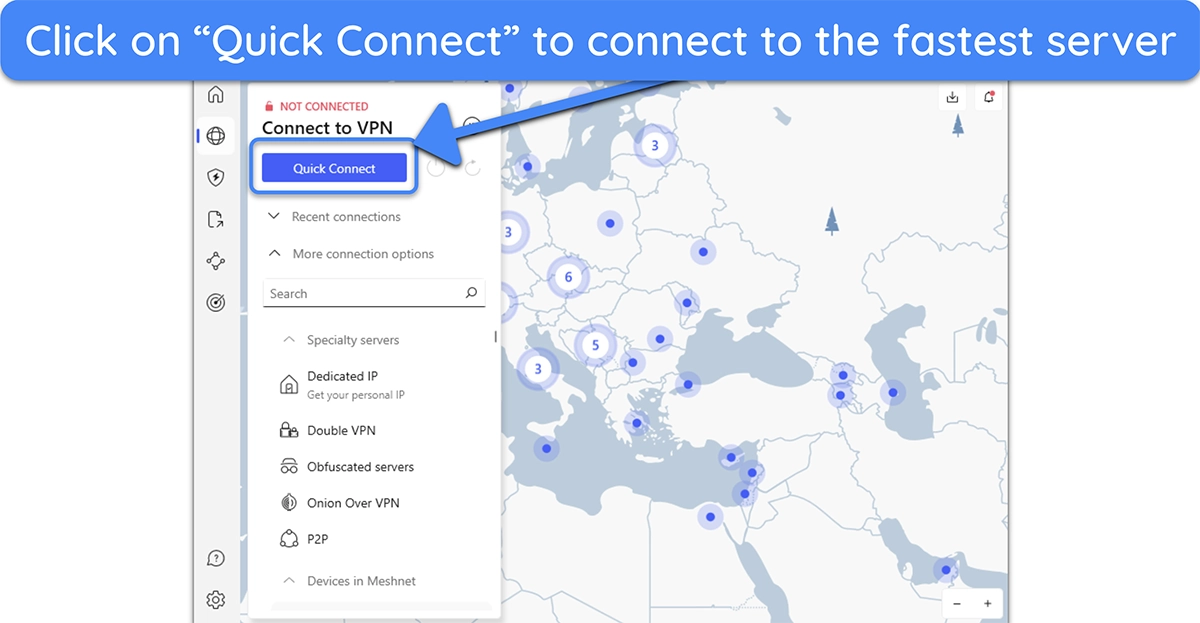
NordVPN is one of the best Windows VPNs, thanks to its user-friendly desktop apps that anyone can use. Its Windows, macOS, and Linux apps have an intuitive menu on the left-hand side that lets you use the VPN, access all the other features, and adjust the settings whenever needed. The server browser is also simple, with all the options laid out clearly.
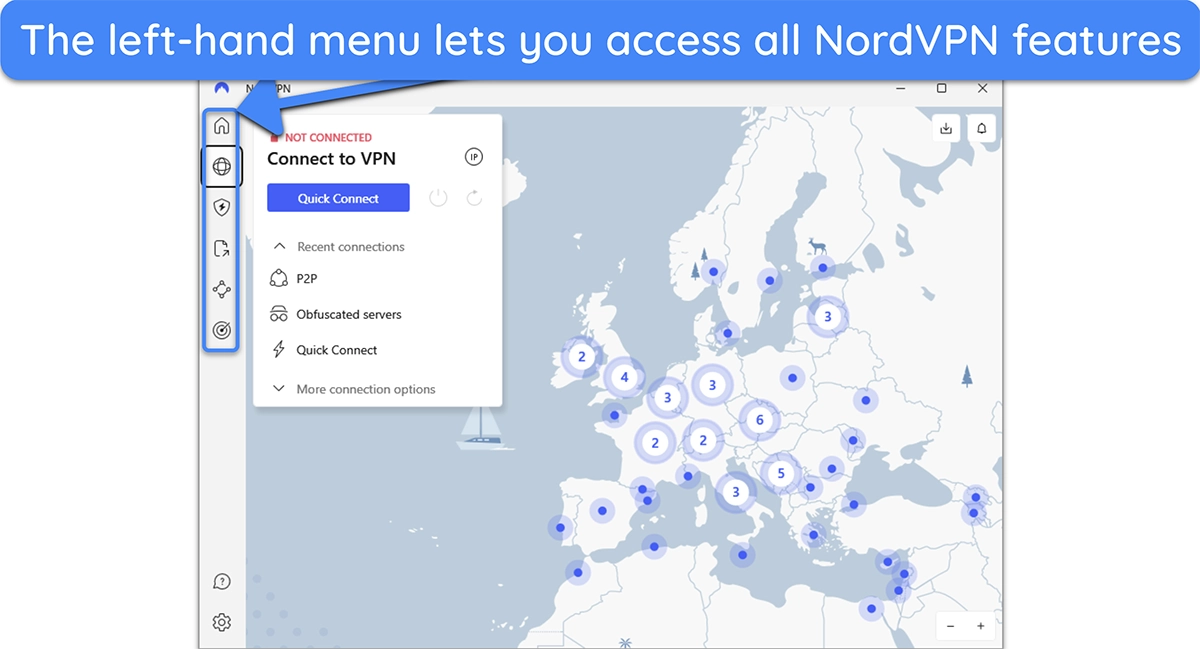
Linux users can use NordVPN’s command-line app, which supports features like auto-connect and Kill Switch for enhanced security. Setup is straightforward, with guides available for various distributions, including Ubuntu and Debian.
NordVPN’s mobile apps for Android and iOS are easy to use, with a bottom navigation bar for quick access to settings, specialty servers, and Threat Protection. Both mobile apps include Meshnet for file sharing and obfuscated servers for restrictive networks, though dedicated IP isn’t supported on mobile.
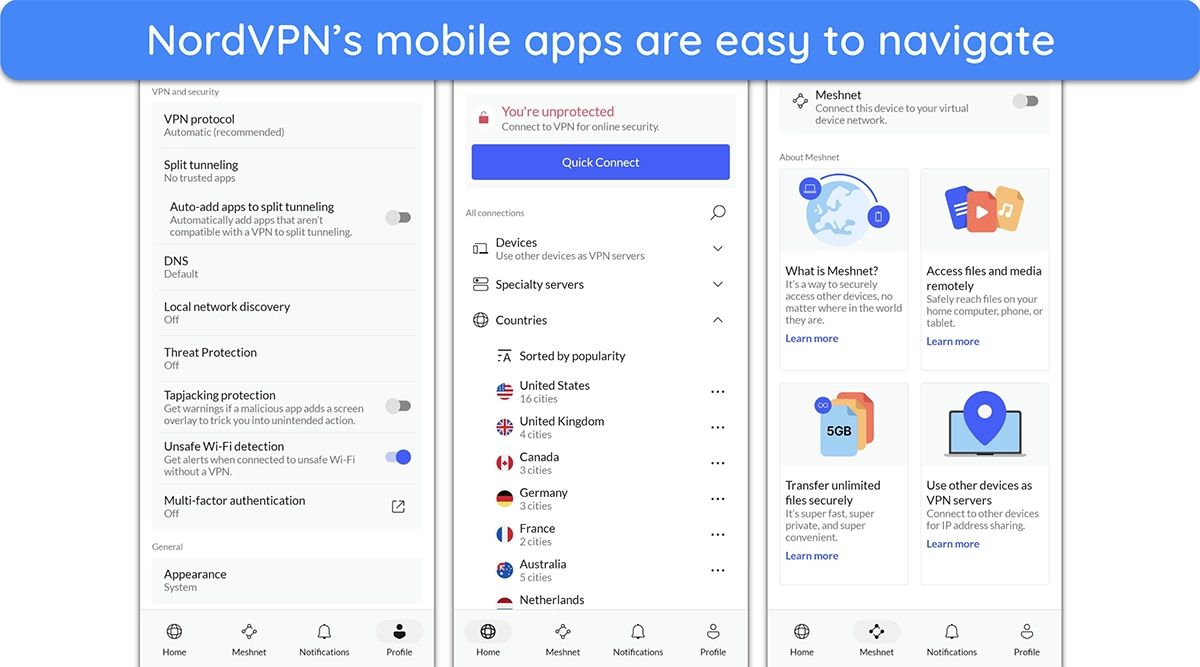
On iOS, you can use Siri shortcuts to activate the VPN hands-free, while Android users can download an APK version for ad-blocking (since Google Play restricts this feature). Both apps default to NordLynx for faster connections and auto-connect on untrusted Wi-Fi, keeping you secure on public networks.
NordVPN includes dedicated apps for Fire Stick, Android TV, tvOS (Apple TV), and many other streaming devices. These apps feature a simple interface, letting you connect instantly via Quick Connect and access specialty servers with ease. On Fire Stick, for instance, you can configure settings for auto-connect and Threat Protection Lite.
If you have a smart TV or streaming device without native VPN support, you can still set up the VPN on your smart TV using NordVPN’s Smart DNS feature. This won’t give you access to all of NordVPN’s features, but it’s enough to ensure you can access all your favorite streaming sites.
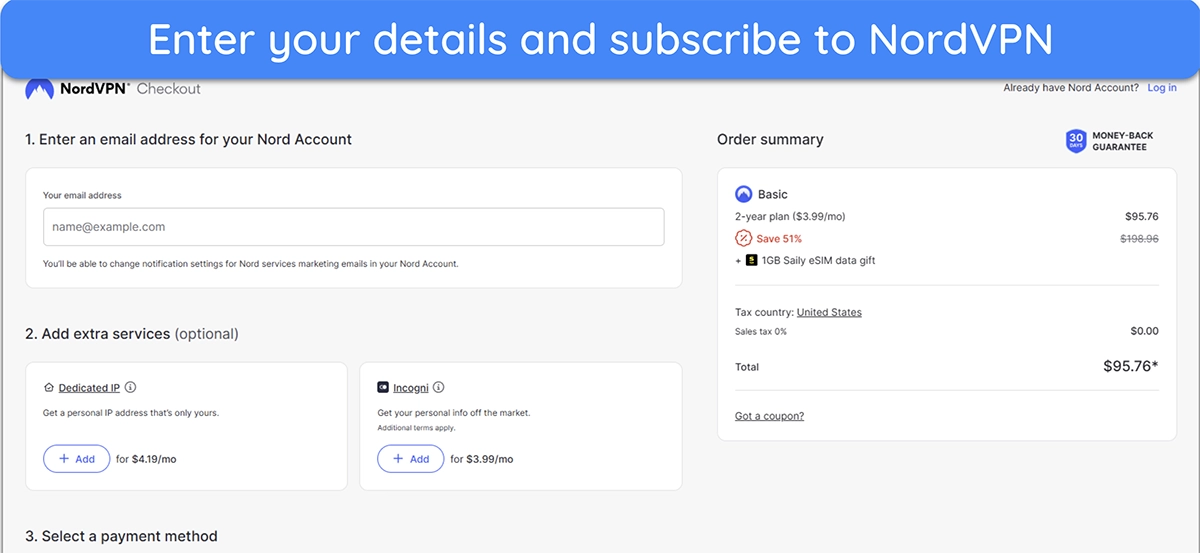
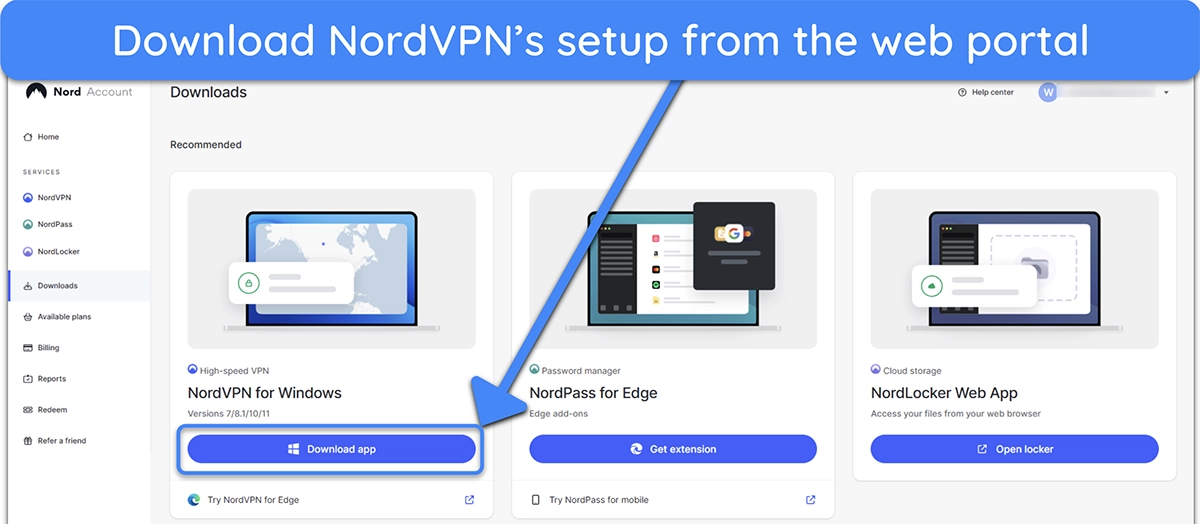
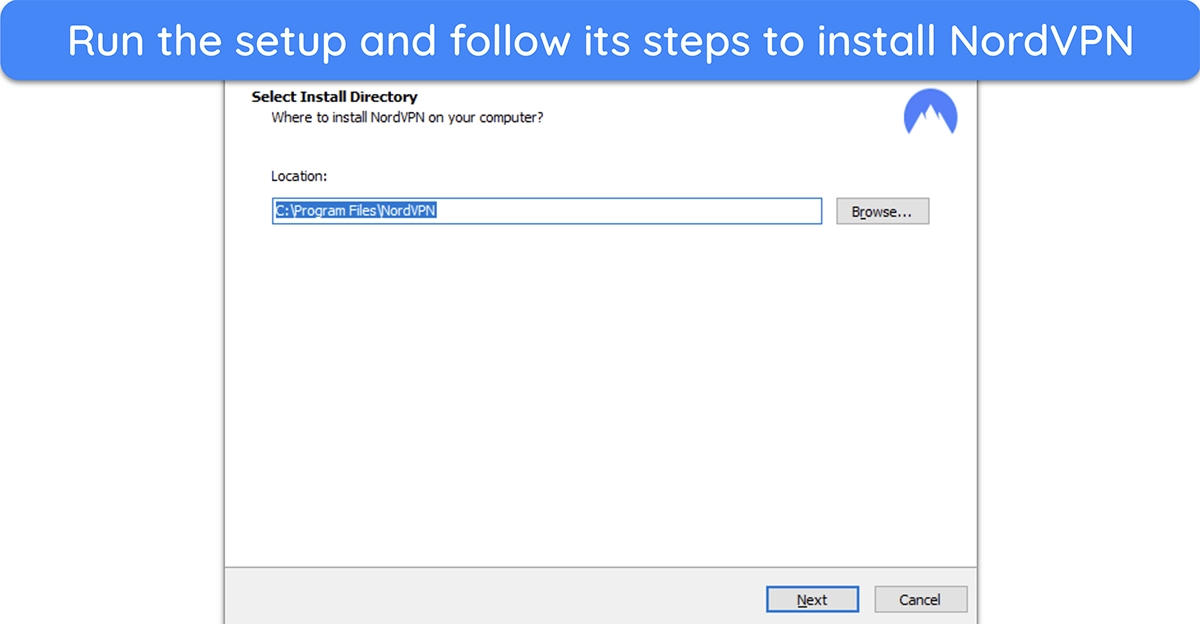
NordVPN is among the most straightforward VPN services to install and set up. You’ll get clear instructions each step of the way, showing that the team has put thought into making the process as hassle-free as possible for both tech-savvy users and beginners.
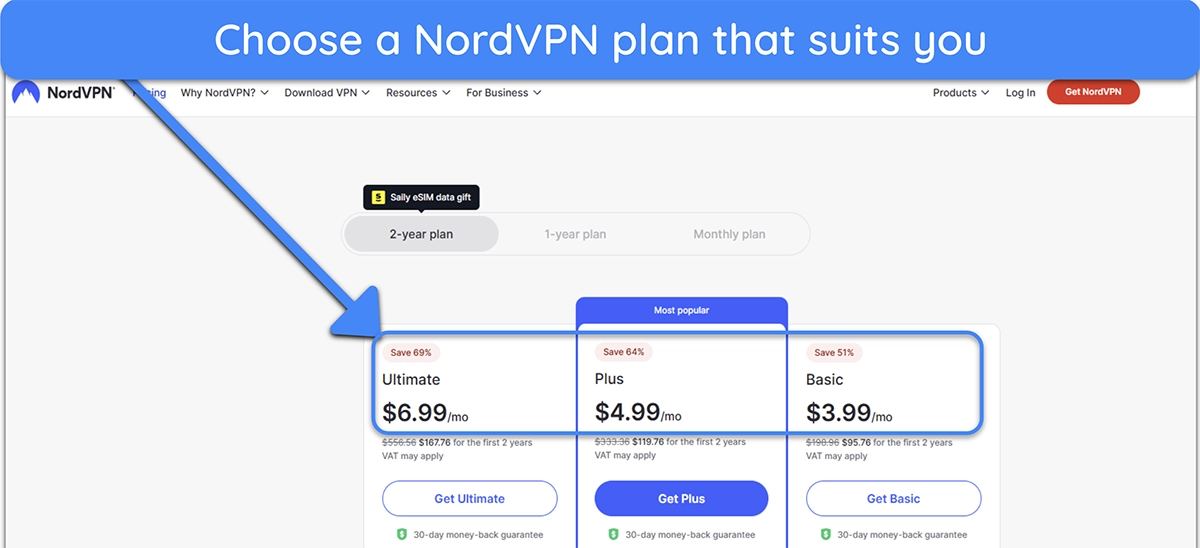
NordVPN’s browser extensions for Chrome, Firefox, and Edge secure your browser traffic with just a click, hiding your IP and blocking ads and malicious sites through Threat Protection Lite. This setup keeps browsing fast and private, especially if you’re browsing the web on unsecured public WiFi networks.
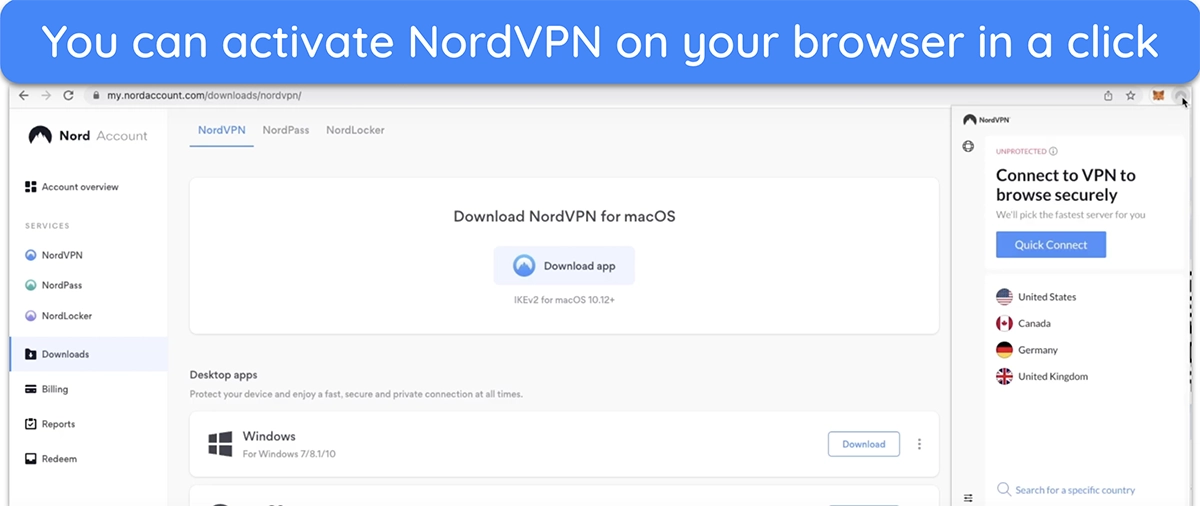
With WebRTC leak protection, NordVPN’s extensions keep your IP address hidden during calls or video chats, and split tunneling lets you choose which sites use the VPN, so local sites load directly. The extension immediately starts protecting your browser traffic as soon as you open it, ideal for secure, seamless browsing every time you go online.
WizCase is reader-supported so we may receive a commission when you buy through links on our site. You do not pay extra for anything you buy on our site — our commission comes directly from the product owner. Some providers are owned by our parent company. .