We put these VPNs to the test to find out which is the best!

There are a lot of components we look at when comparing a VPN, but in general terms, we look at the number and types of features, how easy it is to download and use, how reliable the service is and how effective the customer support is, and if the price matches the service.
This chart gives a general look at those components. Some VPNs are very similar, in which case it's best to continue reading to each section to learn more.
| VPN vendor |
|
|
|---|---|---|
| Download speed reduction | 82% (UK) | 41% (UK) |
| Upload speed reduction | 84% (FRA) | 43% (FRA) |
| Ping time to google.com | 556ms | 36ms |
| Average time to connect (sec.) | 15ms | 13ms |
| Unblock successful for |



|



|
| Visit Site | Visit Site |
Speed determines how fast content uploads, so if you're torrenting or streaming, you want the speed to be somewhat identical to your regular internet speed. Since a VPN encrypts your data, it usually takes a bit longer to send your data back and forth, which can slow down your connection. However, if your ISP deliberately slows down your connection (also known as throttling) a VPN might increase your internet speed. Testing a VPN is somewhat pointless because new servers pop up and affect speed. Your speed can also differ according to your location, so your speed test might not match ours. Having said that, we tested the speed in numerous locations to provide you with the average.
| VPN vendor |
|
|
|---|---|---|
| Server Locations | 9 | 200 |
| Server Countries | 9 | 63 |
| IP Addresses | 3 | 4,000+ |
| Dynamic Server Switching | ||
| Visit Site | Visit Site |
The ratio of servers to countries is an important factor to look at when choosing a VPN. Only paying attention to location or number of servers can get you in trouble. More servers generally means faster speeds, but if VPN X has a few more servers than VPN Y but twice as many users, VPN X will typically have slower speeds. Ideally, you want a VPN that has a lot of servers in every location. This way you won’t have to worry that server/country that you want will be overburdened and running slow
| VPN vendor |
|
|
|---|---|---|
| Email Response Time | X | 6 |
| 24/7 Support |  |
|
| Live Chat | |
|
| Knowledge Base | |
|
| Video Tutorials | ||
| Visit Site | Visit Site |
We personally test the customer support team of every VPN we review. This means asking technical question through the live chat feature (where applicable) and measuring the response time for email questions. Whether you need to connect to a specific server, change your security protocol, or configure a VPN on your router, finding a VPN with quality customer support should be important to you.
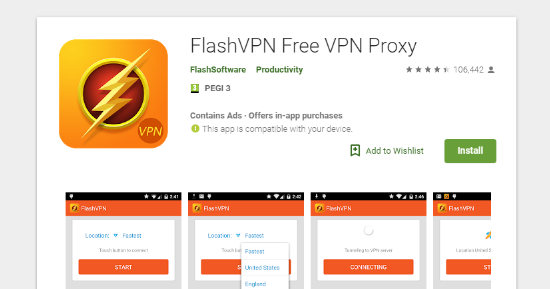
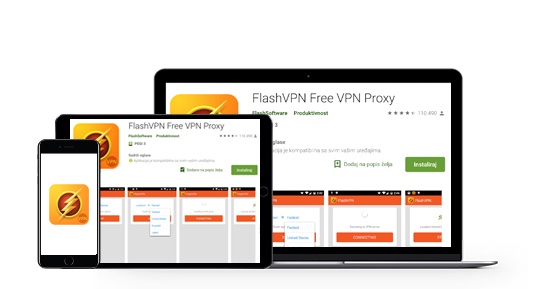
Since FlashVPN is primarily free, there are no restrictions on the number of simultaneous connections. If you are a family with many android smartphones, this VPN is perfect for you. All you need is a Google Play account to download the VPN, no registration is required. However, the slow connection speed makes streaming, torrenting, and browsing challenging.
On the other hand, CyberGhost VPN subscriptions support up to seven simultaneous connections. With a single account, I was able to connect my Windows computer, laptop, Android phone, smart TV and Wi-Fi device all at the same time. People with advanced router skills can also take advantage of advanced router features.
FlashVPN is an Android-compatible service and does not offer a standalone VPN app for Windows, Mac or iOS. This means you cannot install it on a router or use it on streaming devices (Apple TV, Roku, etc.) and game consoles (PlayStation, Xbox, and others).
The same holds true for web browser extensions. As such, you will need a different VPN if you wish to protect your other devices or your entire home network.
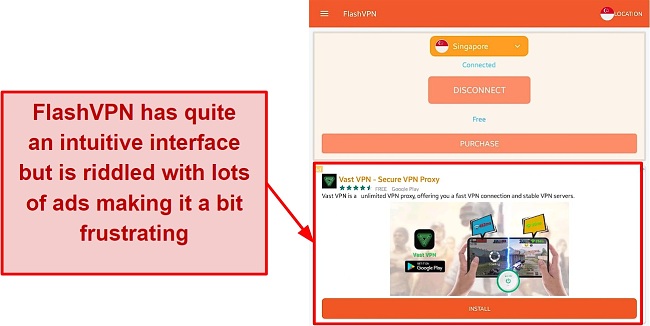
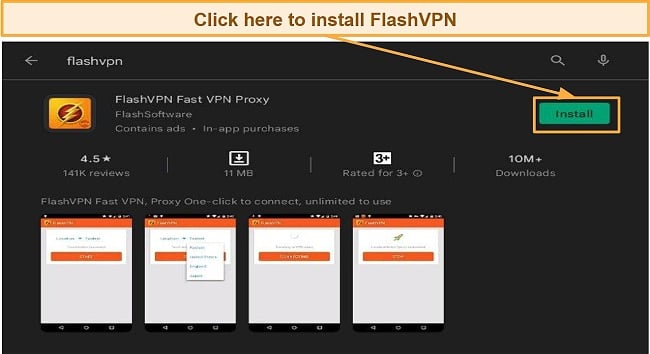
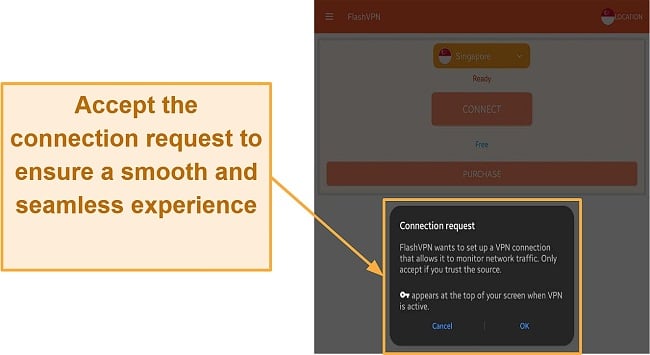
FlashVPN offers a fairly straightforward and easy installation process. Most free VPN services are simple to use and set up due to their simplistic design. While this is also true with FlashVPN, you’ll be bombarded with ads when trying to use it.
It’s no secret that free services are most likely to utilize advertisements since that’s one of the few possible ways of generating revenue. But they are still very irritating, and the only way to get rid of them is to upgrade to a premium plan.
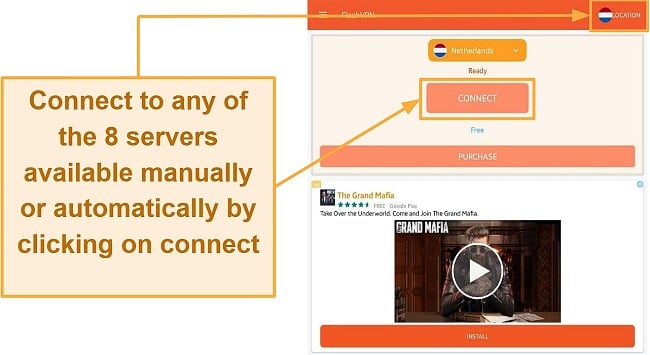
All you need to do is open it up, close any pop-ups, then click Connect. While FlashVPN tries to connect you to the server that is nearest and fastest to you, you may experience problems from time to time with your connection.
All of PrivateVPN’s apps were generally reliable during my tests but at times I couldn’t connect to the “Dedicated IP” servers in Germany and Japan. The Windows app has an “Install/Repair Windows TAP Adapter” option in the menu that fixed the problem. Unfortunately, the same issue happened the next day. This time, repairing TAP drivers didn’t work.
When the same thing occurred on my Mac (where repair TAP adapter option isn’t available), support told me to wait a few hours for these servers to come back online. They returned after about 10 minutes, but it was inconvenient. Other than the rare connection troubles, I never encountered glitches in the apps themselves.
You can connect up to 10 devices to a PrivateVPN server simultaneously on a single license. Most VPNs start to lag when you connect more than 5 devices at once, but that wasn’t the case with PrivateVPN. I used 2 Windows PCs, 2 Android phones, a Mac, and an iPhone to connect to a local server and had no problem streaming on all 6 devices.
If you need more than 10, you can install PrivateVPN on your router and every device that’s connected to it will be secured, essentially supporting unlimited devices. I found setup guides for compatible routers on PrivateVPN’s website.
But it’s a technical process that can damage your router if you don’t know what you’re doing. Still, it’s useful to secure devices that PrivateVPN doesn’t have native apps for like Apple TV, Playstation, and Xbox.
PrivateVPN is one of the best VPNs for Windows platform with native VPN apps for Mac, but it’s not a good option for Linux.
PrivateVPN lags behind many other competitors where Linux is concerned. Though it doesn’t have a CLI or GUI app for Linux, there’s a guide to set up OpenVPN to manually access PrivateVPN’s servers.
I appreciate that the Windows and macOS apps are almost identical in style and layout. The Simple view mainly contains a big button to connect or select a server, while Advanced view opens the settings menu.
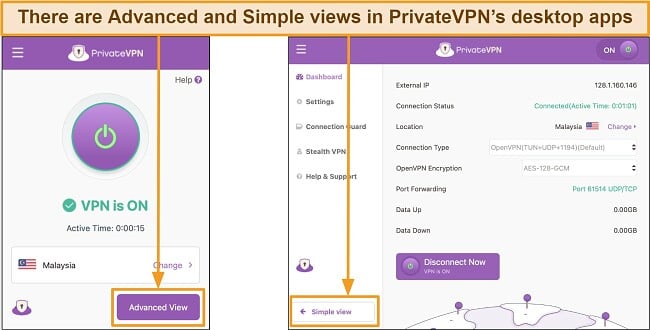
A few differences to note between the 2 device types:
The iOS and Android apps have similar layouts and lots of options. It’s easy to connect with one tap using the big button on the home screen. There is a button labeled “VPN Settings” and within this menu, you can change VPN tunneling protocols, choose a different encryption level, activate Stealth mode, and more.
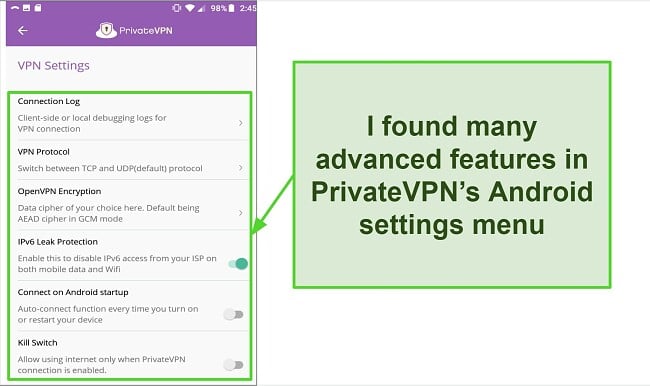
The one big difference is there’s no kill switch in the iOS app. There’s also no IPv6 protection option, but my tests didn’t find any data leaks. Lastly, only iOS offers IKEv2/IPSec protocols, which are slightly faster than the OpenVPN protocol used on Android. Other small differences include not being able to start the iOS VPN on startup.
Despite inconsistent features, both PrivateVPN’s iOS and Android apps provide customization. On Android-based smart TVs, you can also download the APK file to use the mobile app on your television.
You can use PrivateVPN on Amazon Fire TV Stick, Chromecast, and Kodi. I found a native app in the Amazon app store, but if you can’t find it, the “Getting Started” page has documents walking you through installation on all these devices.
Just keep in mind that there’s no kill switch on the native Fire TV Stick app, which could put your privacy at risk if you use Kodi or similar apps. It’s also ported directly from Android, which I noticed made the layout and navigation quite clunky. However, my streaming experience on Fire TV Stick was lag-free with minimal initial buffering.
Unfortunately, PrivateVPN doesn’t offer Smart DNS. Having a non-encrypted proxy server is helpful for streaming and using non-compatible devices like gaming consoles and smart TVs, so I hope PrivateVPN adds one in the future.
On PrivateVPN’s website, I found setup guides for the following compatible routers — ASUS RT, Synology, DD-WRT, Tomato, pfSense, QNAP, and Linksys.
PrivateVPN doesn’t have native apps for Apple TV, Playstation, or Xbox, but you can still protect these devices through router installation. It’s not as straightforward as installing an app and will require some technical knowledge. If you must connect your VPN to a router, there are better VPNs for this.
For example, ExpressVPN is easier to install on compatible Asus, Linksys, and NetGear routers. There are in-depth installation guides on its website and it also provides its own firmware that’s easy to download and install, even for beginners. Alternatively, purchase a pre-configured router from FlashRouters and you can use it as is — no setups required.
These are easier than trying to set up PrivateVPN on your router and less risky.
There isn’t a PrivateVPN extension for Chrome, Firefox, Safari, Edge, or other browsers. But you can connect to PrivateVPN’s HTTP proxy servers on your browser. This is not the same as the VPN, since you can’t switch between servers, and it doesn’t encrypt your traffic.
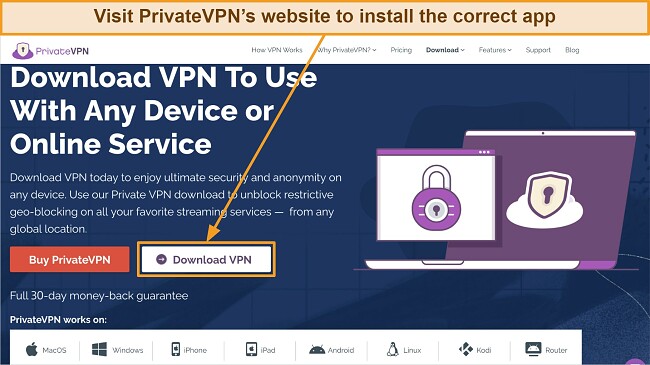
You’ll have no problems getting PrivateVPN installed on Windows, macOS, iOS, or Android. It’s easy and only takes a few minutes for most platforms.
WizCase is reader-supported so we may receive a commission when you buy through links on our site. You do not pay extra for anything you buy on our site — our commission comes directly from the product owner. Some providers are owned by our parent company. .