How to Remove a Virus From iPhone and iPad in 2026
Reading time: 9 min
Last Updated: Jun 17, 2026

Battery draining at the speed of light? Seeing unwanted pop-ups? Or did you find a new app you don’t recognize? These are all signs that your iOS device might be under a cyberattack.
I know people say you can’t get viruses on your iPhone and iPad – and that’s true to an extent because of Apple built-in defenses. However, you’re still exposed to a range of online threats, like phishing links, unsecured WiFi networks, and hackers. It’s even worse if you’ve jailbroken your iOS device as you’re vulnerable to all the above, as well as malicious apps harboring viruses and malware.
The best way to remove threats and protect your device is to download a powerful security app for iOS, like Aura. It can flag and block dangerous files, networks, links, SMS texts, and even warn you when any personal details have been released on the Dark Web.
Protect your iOS device with Aura
Quick Guide: 3 Easy Steps to Remove a Virus on iPhone and iPad
- Get an iOS antivirus app. Aura is the best for iPhone and iPad in 2026 with web browsing protection, a free VPN, WiFi scanner, and more.
- Launch the app. Aura automatically scans your device for security and privacy threats, and shows you how to fix any issues.
- That’s it! Keep the app running in the background for constant protection.
Protect your iOS device with Aura
The Best iPhone and iPad Apps for Virus Removal (Tested in 2026)
1. Aura — Excellent iOS Antivirus With Useful Safety Features
Key Features:
- Secures online activity on iOS devices with its effective VPN.
- Helps locate and remove personal information from people-search websites.
- Offers a breach monitoring tool to check for compromised passwords.
- Supports iOS 12.4+ (iPhone, iPad, and iPod Touch).
- 60-day money-back guarantee.
Aura delivers top-grade security on iOS devices to protect you against advanced cyber threats. Also, I found that it has one of the most intuitive iOS apps available. Aura’s app is visually appealing and has a beginner-friendly design that lets you quickly navigate the various menus and use all its features.
iOS virus protection works a little differently. There aren’t any virus scanners, but you need to protect your information. Aura protects iOS devices with its excellent VPN. The VPN encrypts your connection, ensuring no one can spy on your traffic and see what you’re doing. Additionally, Aura removes your information from data brokers, ensuring your data is safe.
Among Aura’s unique strengths is that it offers top-grade identity and credit monitoring. The ID monitoring helps you remove your information on people-search websites if it’s available there. On the other hand, credit monitoring lets you link your accounts to ensure you aren’t a victim of fraud.
There’s also an excellent password manager that helps safeguard your credentials. Aura’s password manager offers reliable safety and also includes a data breach scanner. The scanner is a useful tool to check whether any of your accounts were leaked in data breaches, and I frequently used it in my tests.
Best of all, you can try Aura risk-free with its 60-day-long money-back guarantee. Claiming refunds for the app is easy if you’re unsatisfied — all you have to do is contact support and ask for one. However, note that refunds are only available if you get Aura’s annual subscription.
2. McAfee — Lightweight iOS App Provides Effective Security Against Hacking

Key Features:
- Provides safe browsing, dark web monitoring, WiFi scanning, and secure VPN
- Super lightweight at just 67MB for powerful iPhone security
- Supports iOS 13.0+ for iPhone, iPad, and iPod Touch
- Protects up to 10 devices with one subscription
- 30-day money-back guarantee
McAfee’s iOS app is lightweight at just 67MB, providing powerful security without taking up lots of space on your iPhone. This means you have more storage for your important files, photos, and other apps — plus the lightweight nature of McAfee means it performs quickly. During device scans, I found McAfee didn’t impact my iPhone’s performance and having the app running in the background wasn’t a drain on my battery. I had constant protection from hackers without having to worry about charging my iPhone more regularly.
Despite McAfee’s small app size, it has several key security features to guard against hacking and malware. While out with my iPhone, I used the WiFi scanning feature to ensure my network connections were secure, and McAfee’s safe browsing blocked any shady websites. I also made use of McAfee’s secure VPN to keep my online activity anonymous — this feature is available on all plans, but only if you sign up for subscription auto-renewal.
I’d recommend that you choose McAfee’s Total Protection for the best subscription value. This lets you secure up to 10 devices and gives you access to the majority of its features if you agree to auto-renewal. Plus, you can try McAfee risk-free as it’s backed by a 30-day money-back guarantee.
Protect your iPhone with McAfee
3. TotalAV – Great iOS Mobile Security App for Maximum Protection Against Online Attacks
Key Features:
- Protects your device with WebShield and secure VPN
- Features a Device Locator in case of theft
- Comes with Optimization Tools to boost your devices’ performance
- Supports iOS 9.0+ (iPhone, iPad, and iPod Touch)
- 30-day money-back guarantee
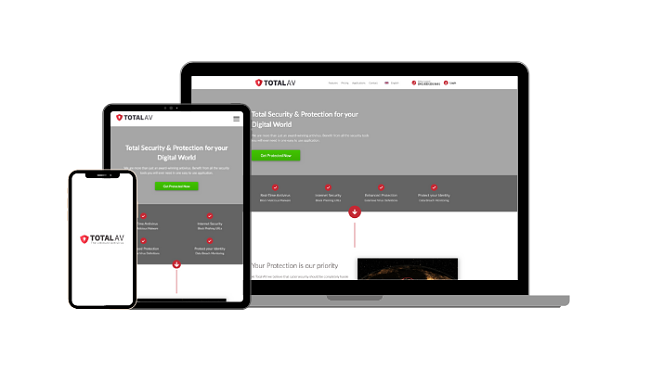
TotalAV Mobile Security is a great antivirus app for your iPhone and iPad.. This app is ideal if you’re a power user and you want to get the most of your iOS device. However, it does take up the most space with a file size of 195.9MB.
TotalAV has a VPN, data breach checker, and WebShield filter for blocking risky websites that might contain malware or phishing scams. In tests, all these features worked well. The VPN has unlimited data and it even auto-connected when I launch Safari’s private browser.
TotalAV comes with a 30-day money-back guarantee though, so you can try TotalAV on your own iOS device and get a refund if you don’t like it. I tested the refund policy to make sure it works, and the customer support team approved my request in less than 5 minutes over the phone.
Protect your iPhone or iPad with TotalAV
Other Ways to Remove a Virus From iPhone or iPad
- Delete suspicious apps – When you see an app you didn’t download, it’s very likely that it’s there to compromise your device. Don’t tap on it because it might execute malicious software. Instead, delete it, and it should go away.
- Clear website data – This removes cookies, especially tracking cookies from any third parties that are watching your browsing history and habits.
- Restore a backup – Try restoring your iOS device to a version before it starting having problems. This previous version takes your device back to a time when it’s not infected.
- Reset to factory settings – This returns your device to its brand-new state, deleting everything in your storage along with the malicious files.
Protect your iPhone or iPad with Aura
Top Tips to Protect Your iOS Device From Viruses
Antivirus apps like Aura are your best bet for protecting your iOS devices from cyberattacks, but if you take additional precautions, you can better protect your phone. Here are the top tips for protecting your iOS device from viruses:
Update Your Device Regularly
An outdated system could open up a gateway for viruses to enter. Apple takes the security of its products seriously – if there’s a security loophole, it’ll be fixed immediately and included in the update. If you don’t install updates regularly, hackers could take advantage of these security loopholes and get into your iPhone or iPad.
Don’t Jailbreak Your Device
Jailbreaking your iPhone gives you more freedom over interface customization, but it’s just not worth risking the safety of your iOS device. When you jailbreak your iPhone or iPad, you’re exposed to apps that aren’t vetted by Apple. This increases the risk of downloading malicious apps and lowers your ability to ward off cyberattacks.
Only Download Apps From the App Store
All apps on the App Store are sandboxed, meaning each app is checked thoroughly for viruses and malware before it’s available for download. Only downloading apps from the App Store helps a lot with keeping your iOS device safe.
Don’t Connect to Public WiFi Networks
Many public WiFi networks are unsecured, which means hackers can use them to steal your information, see your messages, and plant malware onto your iOS device. You could even accidentally connect to a fake hotspot and be vulnerable to attacks that steal your login information. To receive an automatic alert when you’re about to connect to an unsecured network.
Don’t Open Attachments From an Unfamiliar Source
Attachments from strangers or links could potentially be malicious programs. As soon as you open them, the malware, spyware, or virus would execute and perform what they’re designed to do – which is usually to steal your private data or infect your device.
Protect your iPhone or iPad with Aura
Keep Your Phone Safe with a Premium Antivirus App
Apple’s devices are built to be safe, but that doesn’t mean it’s completely immune to online attacks. While there are ways to detect and remove viruses on your Apple devices that are free, the best way to secure your device and sensitive data is by using a top-tier antivirus.
Aura protects your iOS device from a range of advanced online threats. It even has a 60-day money-back guarantee, giving you plenty of time to try it out risk-free. I tested the money-back guarantee myself, and it was easy and quick to get a refund over 24/7 live chat. The money returned to my account in only 5 days.
Summary – Best Antivirus for iPhone and iPad in 2026