Proton Pass Review 2026: Is It Worth It for Privacy-First Users?

Reading time:
Last Updated: May 10, 2026
-
![Sayb Saad]()
Written By Sayb Saad Former Writer
-
![Sarah Frazier]()
Fact-Checked by Sarah Frazier Former Content Manager


Proton Pass Overview
If you want a password manager that puts privacy first, Proton Pass deserves a close look. Built by the same Swiss team behind Proton Mail and Proton VPN, it’s designed to protect not just your passwords but also your online identity with features like encrypted email aliases.
I tested Proton Pass on my phone, laptop, and browsers to see how well it works day to day. Passkeys run smoothly on sites that allow them, and Secure Links lets you share one login without risk. The desktop apps are finally here, too, so you aren’t stuck inside the browser anymore.
The free plan is solid with no cap on logins or devices. Paid tiers unlock extras like a built-in code maker, breach alerts, and Proton Sentinel. There’s also a one-time Lifetime plan that gives all features plus 10 GB of file storage. But the real test is whether Proton Pass now beats rivals like Bitwarden and Dashlane.
Try Proton Pass risk-free for 30 days
Don’t Have Time? Here’s a 1-Minute Summary
- Military-grade protection — Proton Pass encrypts your vault with AES 256-bit encryption and even protects your metadata. Jump here to read about its security.
- Useful features — From email aliases to the built-in TOTP generator and passkey support, Proton Pass covers extra tools. Here are all the features it has to offer.
- Easy to install and use — Proton Pass has easy-to-use, beginner-friendly desktop and mobile apps. Check out which browser extensions it supports.
- Decent customer support — Although Proton Pass doesn’t offer live chat, its email support is prompt and fast. Learn more about its support options here.
- Flexible pricing — Proton Pass has one of the best free plans, plus a lifetime plan for a one-time charge. Check out all its plans here.
Pros
- Strong Swiss privacy and zero-knowledge encryption
- Great free plan with unlimited logins and devices
- Includes email aliases, Secure Links, and Sentinel
- Beginner-friendly apps on desktop and mobile
Cons
- Lacks deeper sharing controls
- No live chat support
Security
Swiss Privacy and Open-Source Protection
Proton Pass is built by the same Swiss team behind Proton Mail and Proton VPN, so its focus on privacy is clear from the start. It doesn’t just lock your logins with encryption, but also secures extra details like usernames, email IDs, and site URLs. Few password managers do this, which makes Proton Pass stand out if you want deeper privacy.
The app also works on a zero-knowledge model, meaning Proton never has access to your vault. All encryption and decryption happen on your device, and nothing useful leaves it in plain form. I reviewed the process while testing sync across my phone and laptop, and each item moved smoothly without any sign of data leaks.
AES 256-bit Encryption — Proven Security for Your Vault
Your vault is protected with AES-256-GCM, the same standard used by banks and state agencies. While no encryption is truly “unbreakable,” this level is considered impossible to crack with current tech. Proton adds another step by encrypting metadata, so even site names and notes stay hidden from anyone who tries to snoop.
I paid close attention to how this worked in daily use. Passwords, notes, and cards synced across devices in seconds, and none of the raw data was exposed in logs. Knowing that even your site list is encrypted gives you more peace of mind, since attackers can’t even guess where you have accounts.
Two-Factor Authentication — A Must for Safety
Since Proton Pass doesn’t use a separate master password, your Proton login is the key to your vault. That’s why setting up two-factor authentication is vital. You can choose an app like Proton Authenticator, Google Authenticator, or Authy, and there’s full support for FIDO2 security keys.

During my test, logging in with a hardware key was quick and reliable, and I liked that Proton doesn’t have weaker 2FA methods like SMS or email codes. These older options are easy to hijack, while app-based or key-based methods are far safer. With 2FA active, I felt secure even if my password were ever stolen.
Proton Sentinel — Extra Watchdog for Your Account
Proton Sentinel spots and blocks risky logins in real time. It uses AI to flag unusual attempts, like a sign-in from another country, and escalates them to Proton’s team if needed. A simple dashboard lets you track alerts so you know if someone is trying to get in.

When I logged in from a new location during testing, Sentinel flagged it right away. The alert was clear and gave me the option to check recent activity. It’s part of the paid plan, but I see real value in it if you’re worried about account takeovers or if you travel often.
Recovery Kit — Your Backup Key to the Vault
When you create a Proton account, you get a recovery kit that includes a unique phrase. This works as a backup key if you ever lose your login details. It comes as a PDF, which you can store offline in a safe place or write down as a hard copy.

I tried the process by locking myself out and restoring with the kit. It worked smoothly and gave me full access again. My advice is to keep at least one paper copy and store it securely, because without this backup, you may never be able to recover your vault.
Privacy — Transparent and Independently Audited
Proton Pass runs fully on end-to-end encryption, so no one, not even Proton, can see inside your vault. The app is open-source, meaning the code is free to inspect and has already been checked by experts. Cure53 completed a full audit in 2023 and only found minor issues, which Proton fixed.

Beyond that, Proton is based in Switzerland, a country known for strict privacy laws. In 2025, the company also achieved SOC 2 Type II certification, which adds another level of trust for business use. These steps show Proton’s focus on security isn’t just talk — it’s backed by proof and outside review.
Features
Well-Balanced Set With Some Unique Tools
Proton Pass has grown fast and now includes most features you expect in a modern password manager. You get passkey support, secure item sharing, Emergency Access, and desktop apps, which were missing at launch. However, It still lacks advanced data templates like API keys and server access credentials.
In my tests, Proton Pass worked as a solid daily driver. Core tasks like saving and filling logins were smooth, and extras like aliases and built-in TOTP added real value. While it’s not as broad as 1Password, it’s moving closer each month and offers plenty for both casual and advanced users.
Intuitive Vault — Simple Yet Flexible
The vaults are easy to use, whether you’re on the web, a browser, or the mobile app. You can store logins, payment cards, notes, and aliases in one place. Paid plans let you create up to 50 vaults, while the free plan gives you 2 vaults to work with.

I liked that Proton added custom item types in 2025, so you can now store things like WiFi credentials and license keys. If an item type isn’t supported, you can still save it in a secure note. Navigation was quick in my test, and I never felt lost while managing large sets of logins.
Hide-My-Email Aliases — Privacy Beyond Passwords
Aliases are where Proton Pass goes beyond other managers. When I signed up for a new GoDaddy account, Proton asked if I wanted to use an alias instead of my real email. Mail sent to that alias still reached my inbox, but the site never saw my actual address.

Free users can create 10 aliases, while paid and Lifetime users get unlimited. You can delete, restore, and manage aliases from a clean dashboard. I found this helpful when testing with a shopping site — I killed the alias after a flood of promos, and the spam stopped at once. The slot freed up, and I created another alias.
Auto-Save and Fill — Works Well With Minor Gaps
Saving new logins worked as expected: whenever I signed in, Proton Pass prompted me to save details. Auto-fill was also reliable, with a small pop-up giving me the right account for each site. I liked the option to pause auto-fill on sensitive sites like online banking.

Now that Proton has desktop apps for Windows, macOS, and Linux, autofill isn’t limited to browsers. Both the apps and browser extensions made auto-fill seamless without any glitches. But there was one instance where I saw an odd missed prompt on niche sites, which is common across most managers, not just Proton.
Password Generator — Creates Secure Passwords and Passphrases
Proton’s password generator gave me full control. I could create up to 64-character strings with numbers, symbols, and mixed cases, or switch to passphrases up to 10 words long. There’s also a “memorable” mode for easier recall when you don’t want pure random text.

What stood out was the inline prompt. Each time I signed up for a new service, Proton asked if I wanted to generate a password on the spot. This saved me clicks and kept me from falling back on weak or reused passwords out of habit.
TOTP Generator — Built-In Codes for 2FA
With the built-in TOTP generator, you don’t need a separate authenticator app. Adding a site’s secret key to your vault lets Proton Pass generate time-based codes automatically. When I logged into my test accounts, the one-time code was copied to my clipboard right away.

This feature is part of the paid plan, so free users won’t see it. If you prefer to keep 2FA separate, Proton also has a free standalone Authenticator app that free users can count on. I prefer the convenience of having both my password and 2FA code handled in one step.
Import/Export — Easily Switch Between Password Managers
Switching into Proton Pass was easy. I imported saved logins from Chrome, Edge, and Bitwarden with no errors, and there’s built-in support for LastPass and Dashlane, too. If your app isn’t listed, you can even submit a request to have it added.

Exporting data was straightforward, though Proton makes you cautious about it. You can export plain JSON or choose a safer option that encrypts your data into a PGP file. I tested both methods, and I recommend using PGP to ensure your export isn’t exposed if your system is ever breached.
Vault and Item Sharing — No More Behind the Times
Proton Pass lets you share vaults with clear roles: Viewer, Editor, or Admin. Free users can share up to 2 vaults with 3 people, while paid users get up to 50 vaults shared with 10. I tried this with a test vault of logins, and syncing updates worked without delay.

For single items, Proton has introduced Secure Links. These are end-to-end encrypted, revocable, and can be set to expire. I shared a single card login using this method, and the recipient opened it without issue. This fills a big gap that used to make Proton feel behind its rivals.
Ease of Use
Quick to Install and Simple to Start
You can set up Proton Pass in under 5 minutes. On desktop, I installed the Chrome extension, signed in, and was ready to store logins right away. On mobile, I downloaded the app from the Play Store, and it gave me a short onboarding guide. This guide showed me how to add my first vault, import saved logins, and enable autofill.
I liked how smooth the first run felt. Proton Pass didn’t bombard me with menus. It shows one screen at a time with clear prompts. The recovery kit prompt stood out since it reminded me to save backup details in case I lost access. That small touch made the process feel more thoughtful than other managers I’ve tested.
Desktop Apps
Proton Pass now has full desktop apps for both Windows and Mac, which fixes one of its biggest gaps at launch. The apps support offline mode on paid plans, so you can reach your vault even without internet. You can toggle offline mode from settings, and data is secured locally with Argon2 encryption.

The interface is clean and consistent across both platforms. You get a three-pane layout with vaults on the left, items in the middle, and details on the right. Search, copy, and share options are always one click away, and edits stay in a single panel instead of hidden menus.
Unlocking is fast thanks to biometric login support. Windows users can rely on Windows Hello, while Mac users get Touch ID integration. Proton is also rolling out desktop auto-type in 2025, letting you fill logins in native apps like Steam or Slack without manual copy-paste.
Browser Extensions and Web App
Proton Pass also works through browser extensions on Chrome, Firefox, Edge, Brave, and Safari. The layout looks consistent across all of them. Features like auto-save and password generator are a click away from the toolbar. If you need to view vaults in detail, the extensions link you straight to the web app.

While I prefer native apps for desktop autofill, Proton’s extensions are polished and light. The interface uses Proton’s dark theme by default, with menus that open in one clean panel. I didn’t run into lag switching between accounts, though Firefox felt a bit slower when auto-filling forms compared to Chrome.
Mobile Apps
Proton Pass mobile apps are well-designed, and I actually found them easier to use than the browser extensions. Your vaults are split into cards, notes, and aliases, which makes scrolling fast. During my tests on Android 13, vault searches returned results instantly, even with over 200 logins imported.

The catch is that the apps only work on Android 8.1 and iOS 16 or newer. That rules out older phones, which could be frustrating if you haven’t upgraded. Still, the design makes daily use smooth — you can add, edit, or share a vault with just two or three taps.
How to Set Up Proton Pass on Different Devices
Android
- Download Proton Pass. Search for the Proton Pass app in the Google Play Store and install it.
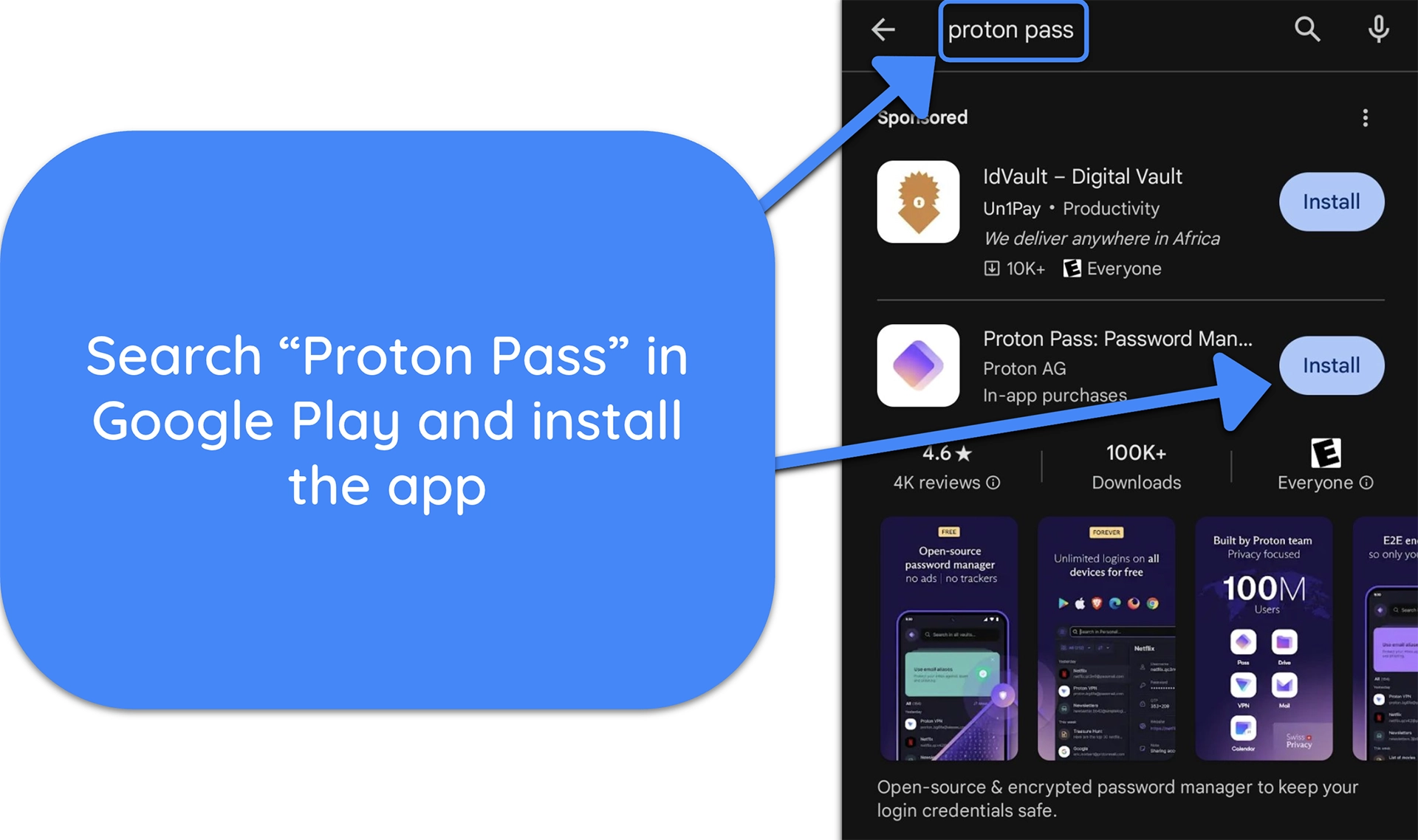
![Screenshot showing how to download Proton Pass from the Google Play store]()
- Launch Proton Pass. Tap “Open” to launch Proton Pass once it’s installed.
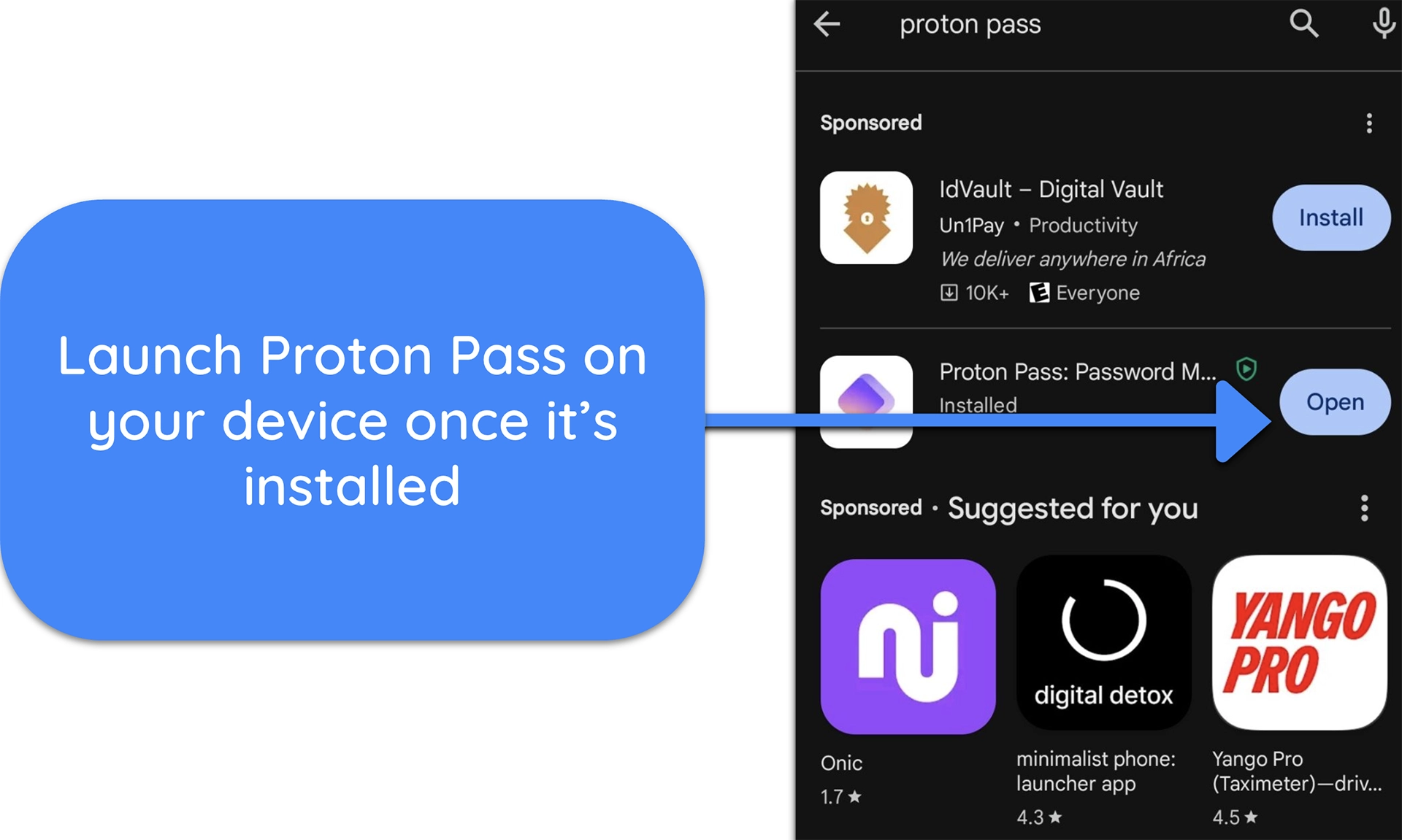
![Screenshot showing how to launch Proton Pass on Android once it's installed]()
- Make a Proton account. Tap “Create an account,” then enter your email and password to set up a Proton account.
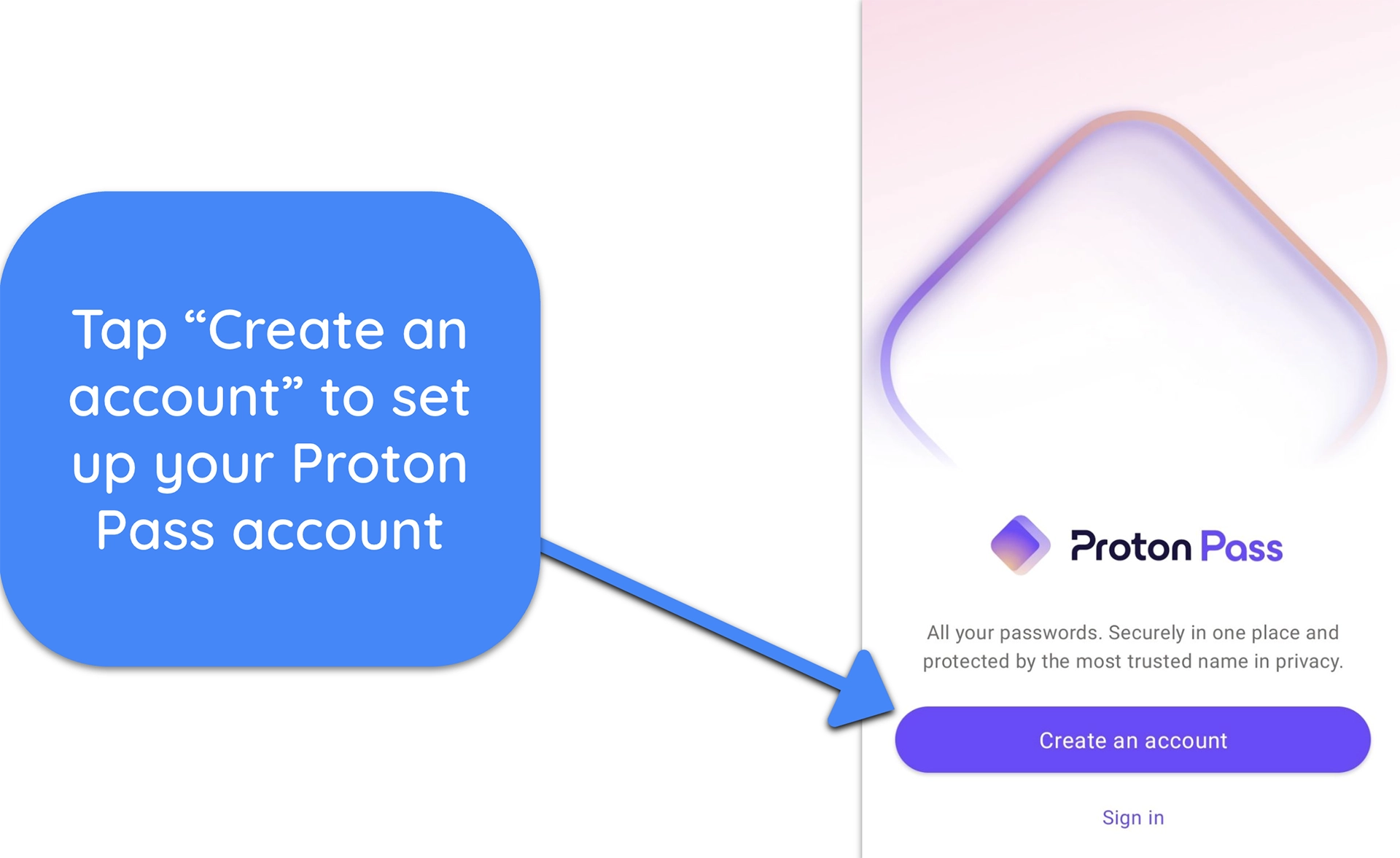
![Screenshot showing how to create a Proton account on Android]()
- Verify your account. Enter the 6-digit code sent to your email for account verification.

![Screenshot showing how to verify your Proton account]()
- Use Proton Pass. Start using Proton Pass to safeguard your passwords.
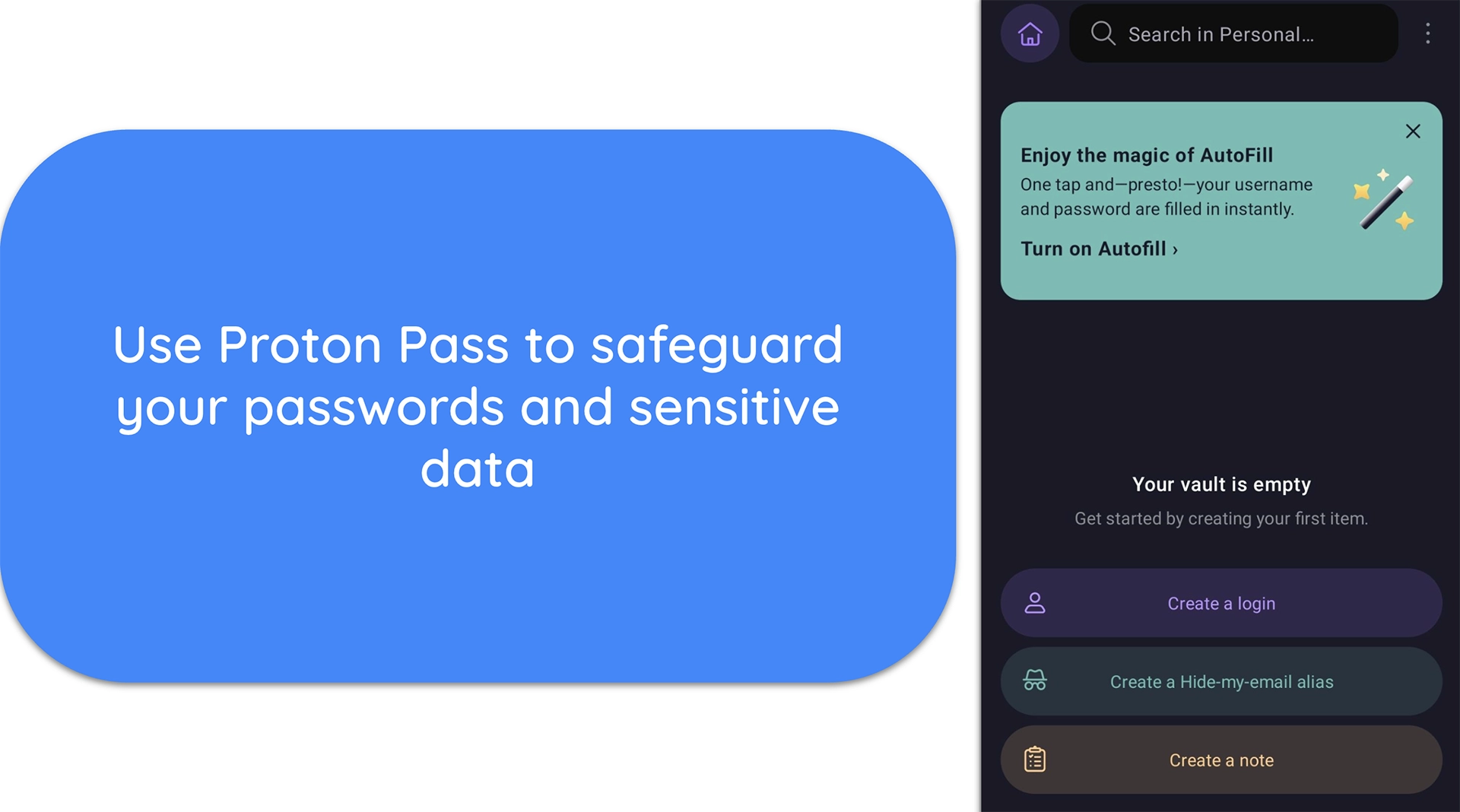
![Screenshot of Proton Pass' Android app once it's been set up]()
Windows
- Access the Proton Pass website. Open the Proton Pass website and click “Get Proton Pass” to get the app.
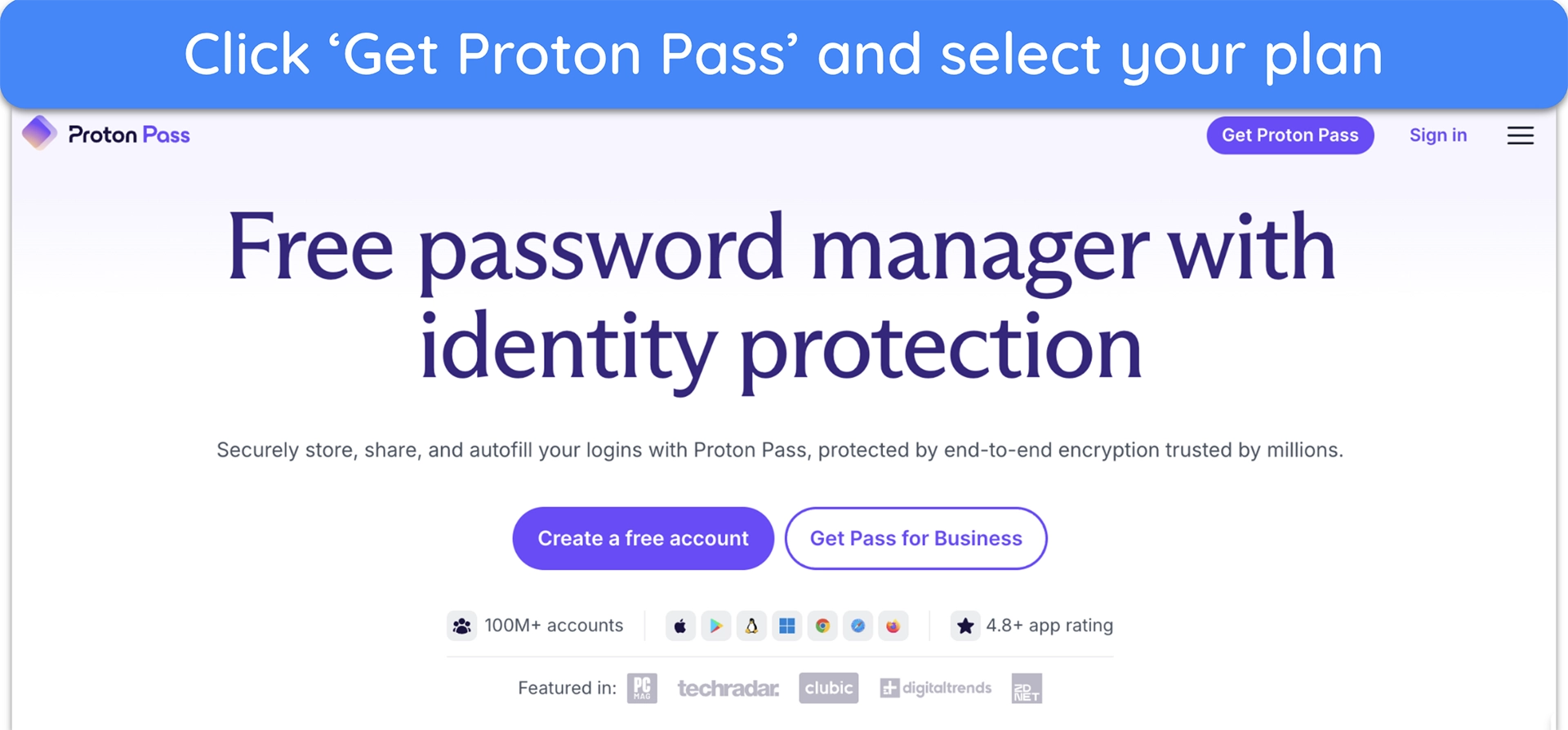
![Screenshot showing how to get Proton Pass from the official website]()
- Choose a plan. Pick a plan that suits your needs.
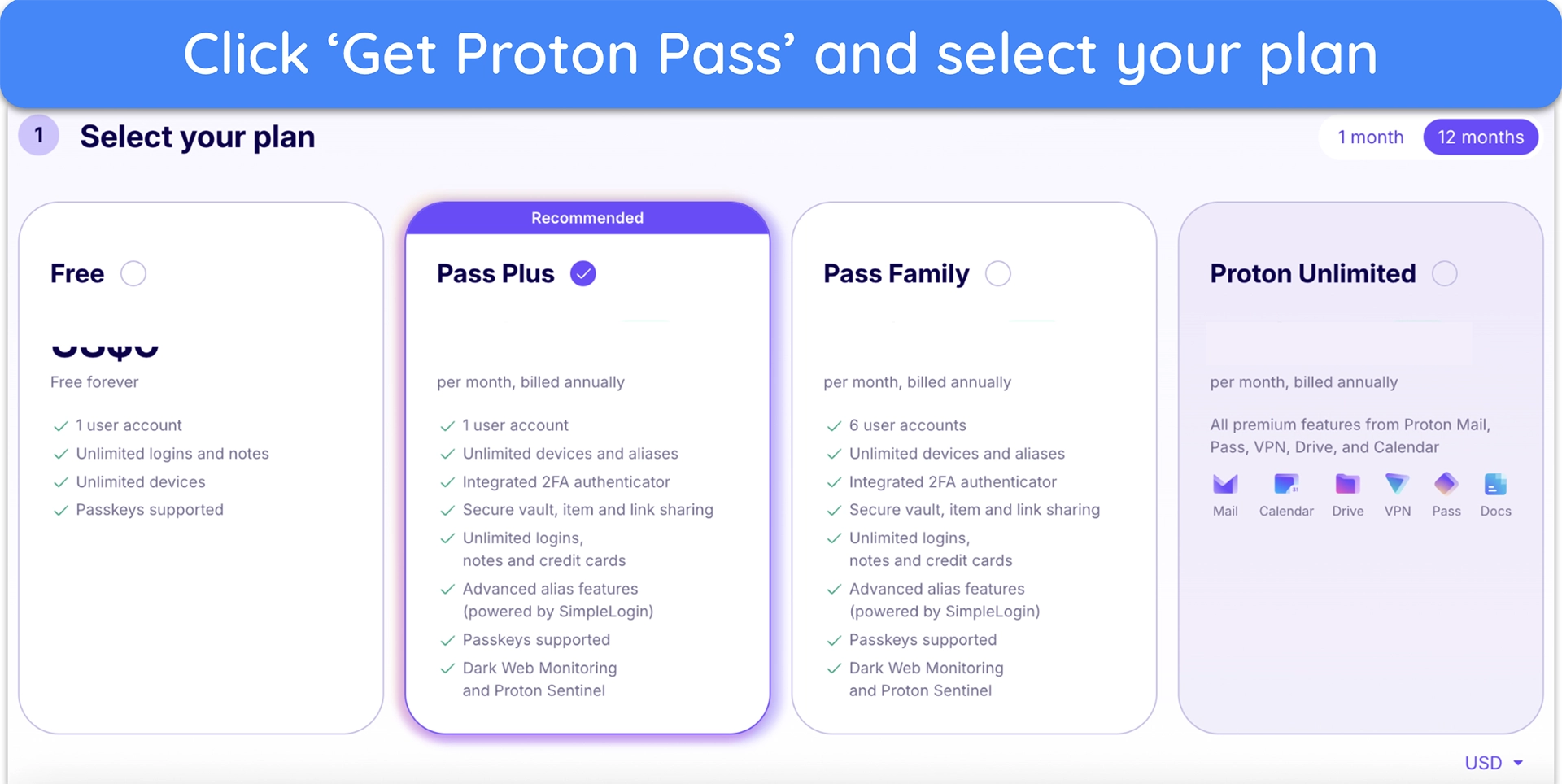
![Screenshot showing how to choose your Proton Pass subscription]()
- Create an account. Enter your email and password to make a Proton account.
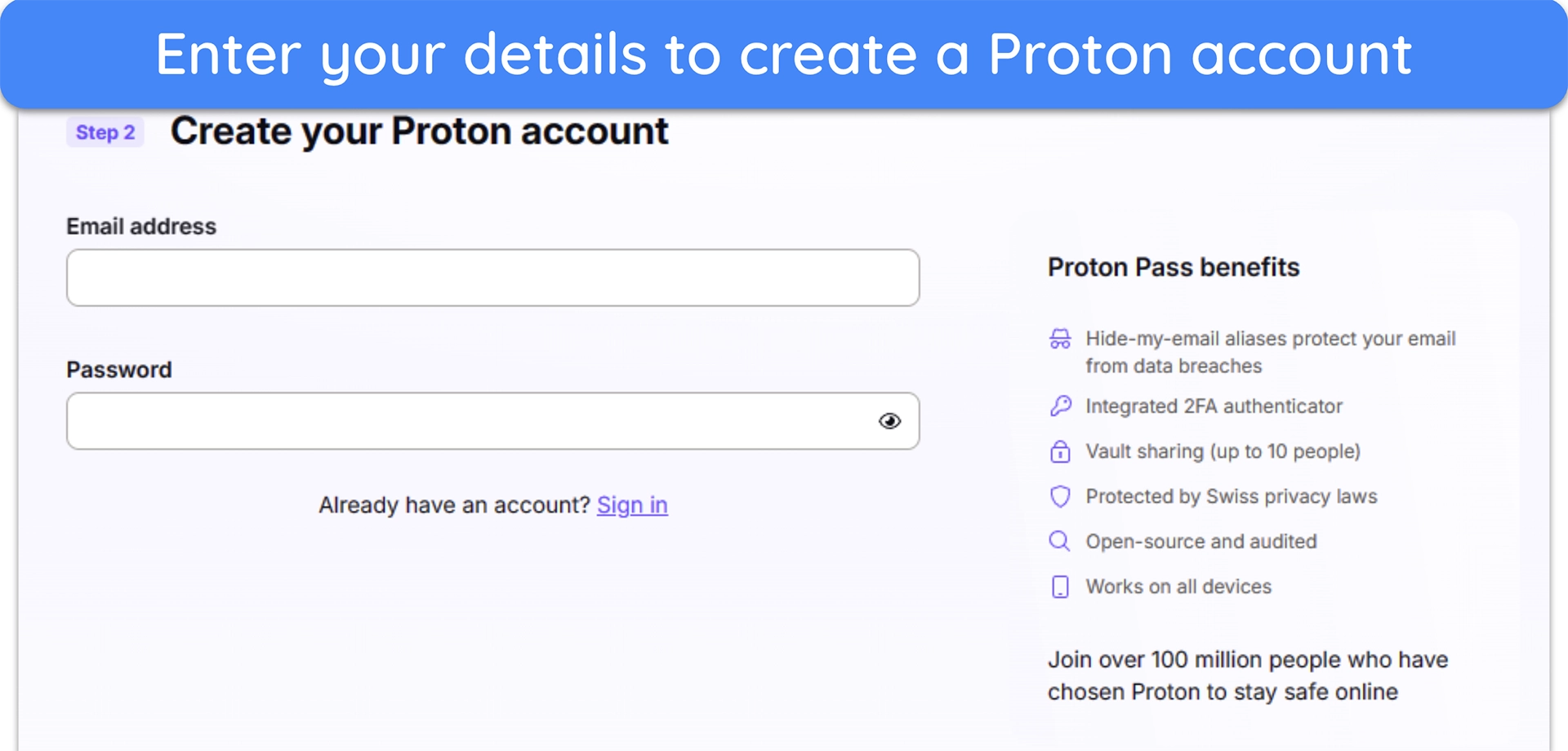
![Screenshot showing how to create a Proton account on your browser]()
- Subscribe to Proton Pass. Choose your payment method and enter your details to subscribe to Proton Pass.
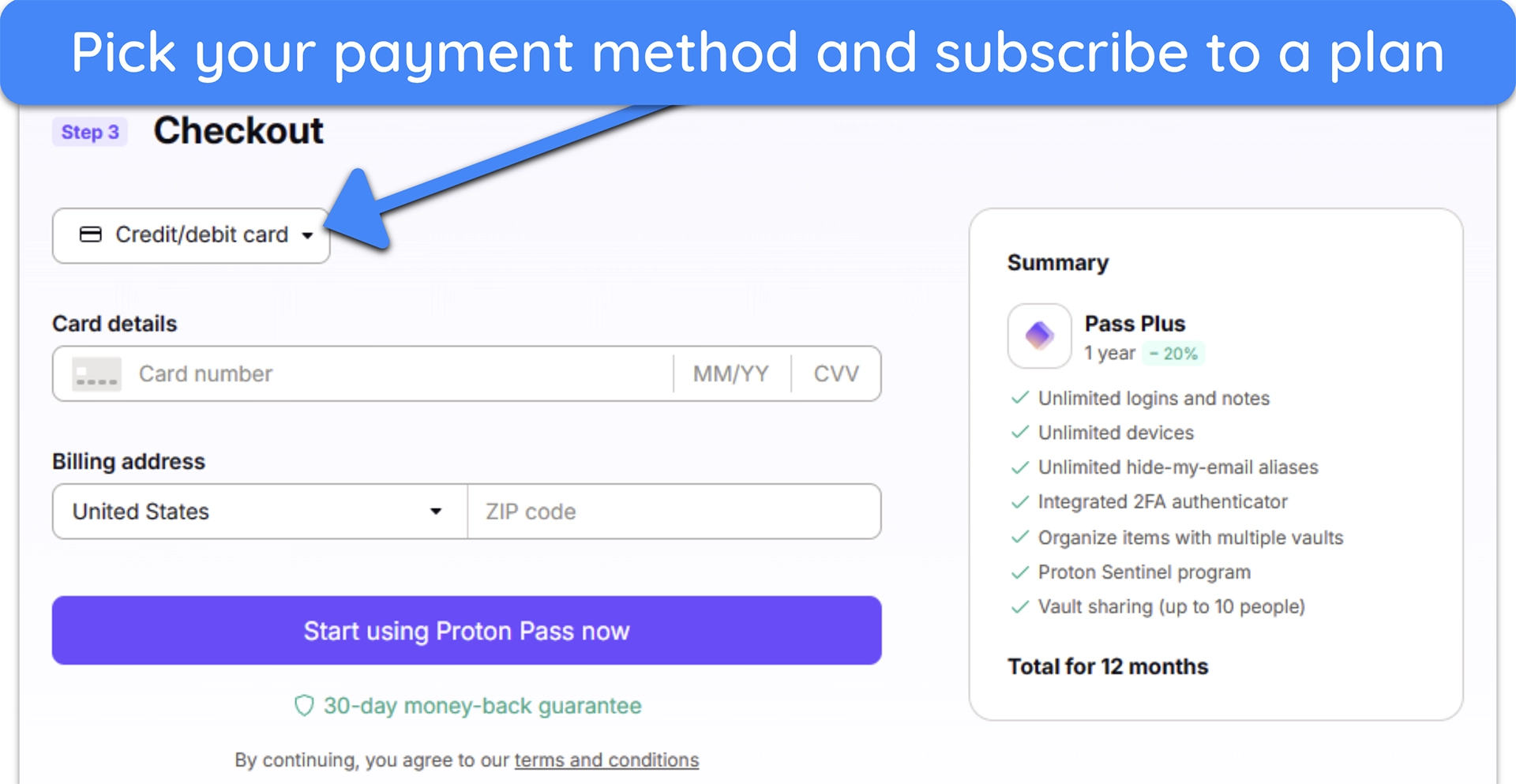
![Screenshot showing how to pay for your Proton Pass plan]()
- Save the recovery kit. Download the Proton Pass recovery kit to help recover your account if you forget your password.

![Screenshot showing Proton Pass' recovery kit]()
- Install the extension. Download the Proton Pass extension for your browser.
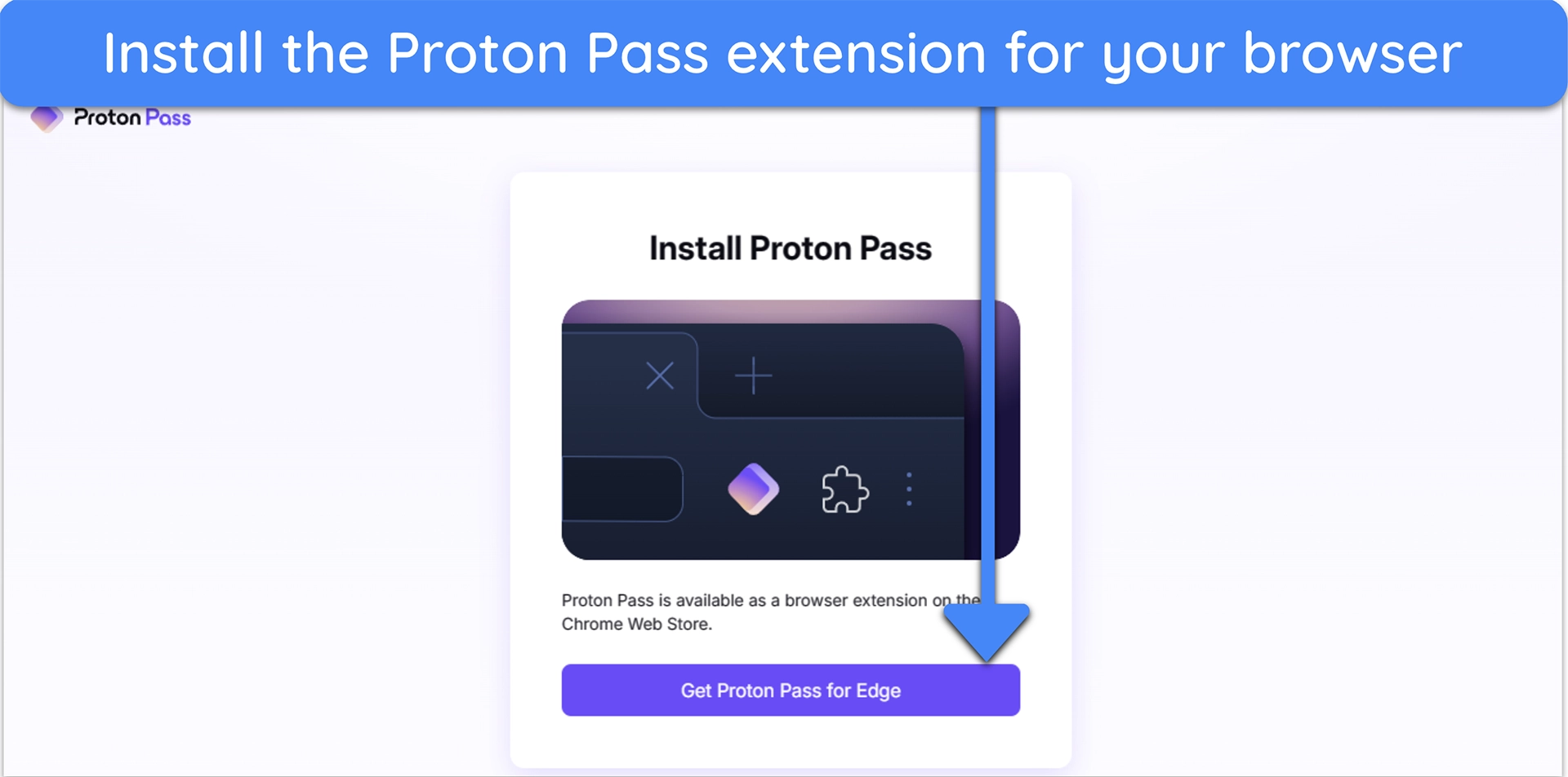
![Screenshot showing how to install Proton Pass' browser extension]()
- Connect your account. Connect your Proton Pass account with the browser extension you installed.
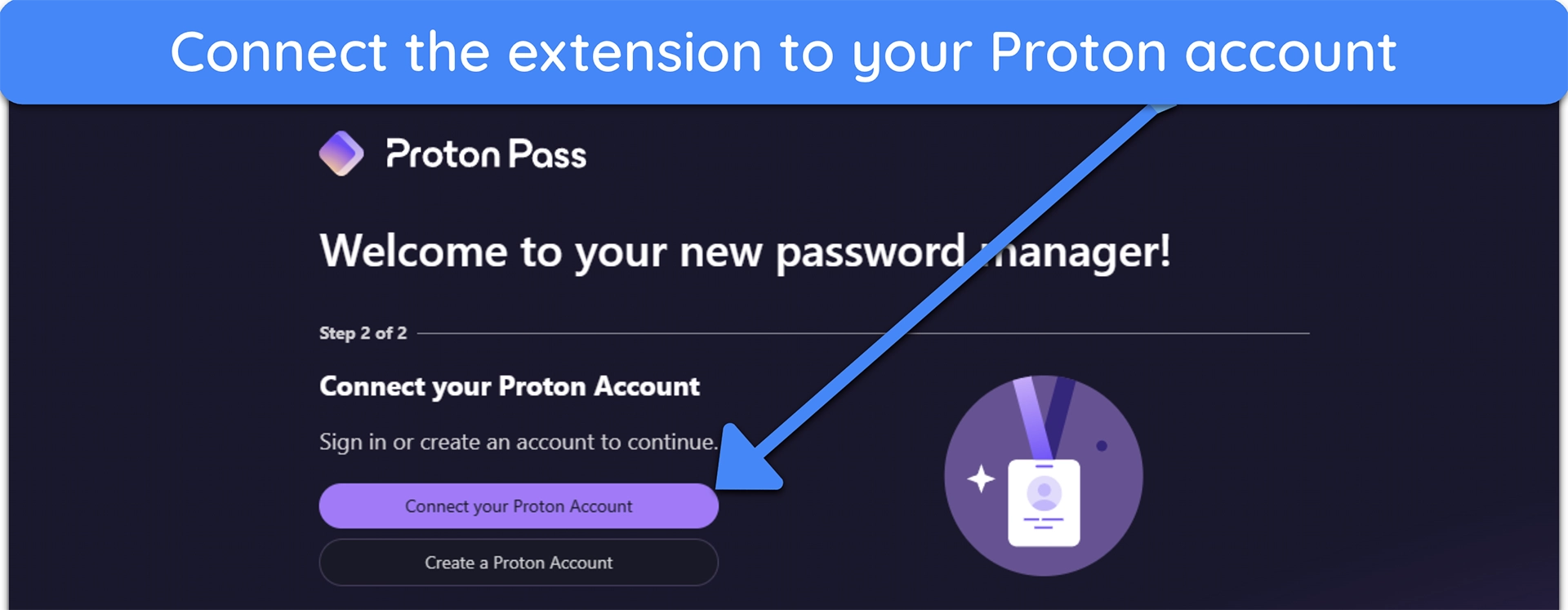
![Screenshot showing how to connect Proton Pass to your Proton account]()
- Use Proton Pass. Access Proton Pass and use it to safeguard your passwords and sensitive data.
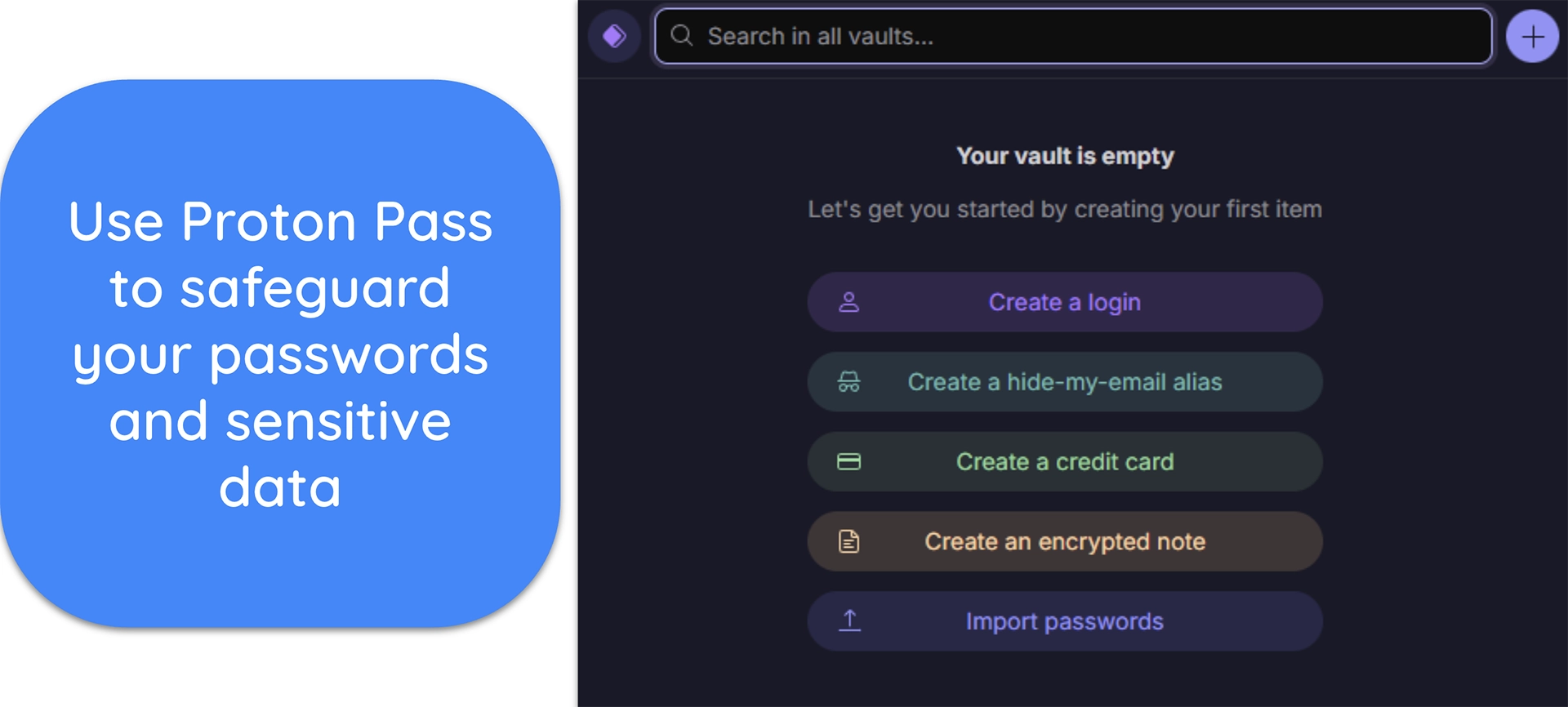
![Screenshot showing Proton Pass' web extension after it's been set up]()
All things considered, Proton Pass feels just as intuitive as Proton’s other apps. Its apps and extensions are easy to use, and they all have an appealing color scheme that’s easy on the eyes.
Support
Proton Pass doesn’t include live chat support like Proton VPN does, which may feel limiting if you expect instant answers. Instead, you get an email/ticket system and a detailed Help Center that covers most needs. During my testing, both were quick and reliable, though live chat would’ve made urgent troubleshooting easier.
Email/Ticket-Based Support
You can reach Proton’s team by filling out a form on the website, using the app’s built-in support tool, or emailing directly. When I tested it, I asked about vault sharing and the lack of a separate master password. The reply came in less than two hours, with clear steps and links to related resources.

If you need more information, you can reply to the email to ask further questions. Responses to this are equally fast, but you should note that your experience may vary based on the time of day.
Help Center
Proton’s Help Center has a full section dedicated to Proton Pass, with guides that walk you through setup, troubleshooting, and advanced features. Articles are well-organized by topic, and the search bar makes it easy to find answers fast. For example, I quickly found a guide explaining how to enable Proton Sentinel with screenshots.

Proton’s Help Center has lots of useful information about Proton Pass
Overall, while you won’t find round-the-clock live chat, Proton’s support is still dependable. The email system gets you detailed answers from real staff, not canned replies, and the Help Center gives you the tools to solve common problems on your own
Pricing
Proton Pass gives you a free plan that doesn’t expire, along with paid tiers for more storage and features. Plans come as monthly or yearly options, with annual billing giving you the lowest rate. Prices vary by region, so check Proton’s site for live numbers. In testing, the free plan alone felt more generous than many rivals’ entry tiers.
Free Plan
The free plan lets you store unlimited logins and sync them across unlimited devices, which is rare in this space. You also get 2 vaults, 10 email aliases, and the ability to share vaults with up to 3 people. It lacks Proton Sentinel and the TOTP generator, so you’ll miss advanced security. Still, it’s one of the best free options if you just need the basics.
Proton Pass Plus
Pass Plus unlocks all of Proton Pass’ core tools, including unlimited vaults, unlimited aliases, and sharing with up to 10 people. You also get Proton Sentinel, built-in TOTP, Secure Links, dark web alerts, and 10GB of encrypted attachments. The yearly plan is much cheaper than paying month to month. If you want a balanced mix of price and features, this is the tier I’d pick.
Proton Pass Family
Pass Family covers up to 6 users under one subscription, with everyone getting their own private vaults. You also get 50GB of encrypted attachments shared across the plan, along with all the perks of Pass Plus. Families can create aliases for school or shopping accounts without clutter. This plan is flexible and usually costs less than buying several Plus accounts.
Proton Unlimited
Unlimited includes the entire Proton ecosystem — Mail, Calendar, Drive, VPN, Wallet, and Proton Pass. You get 500GB of cloud storage plus all premium features from the other Proton apps. It costs more than Pass Plus, but if you’re already paying for Proton Mail or VPN, the bundle saves money. It’s best suited if you want one account for everything Proton makes.
Lifetime Plan
The Pass + SimpleLogin Lifetime plan is a one-time buy that gives you all current and future Pass Plus and SimpleLogin tools. You get unlimited logins, notes, and devices, and unlimited hide-my-email aliases with custom domains. Aliases can route to multiple mailboxes, and you also keep perks like vault sharing, Secure Links, dark web checks, password health alerts, 2FA, and Proton Sentinel.

You can get this plan if you’re new to Proton or if you use a free or single product plan like Mail, VPN, Drive, or Pass Plus. It’s also open to Unlimited, Duo, and Visionary users, but not to Family or business plans. That said, you can still hold Lifetime on your own while being part of a Family plan. It’s the easiest way to lock in Proton Pass forever without ongoing fees.
Money-Back Guarantee
There’s no time-limited free trial for Proton Pass — the free plan is yours to keep. Business accounts, however, get a 14-day trial covering the full Proton suite. For individual users, the only exception is if you leave a Proton Family or Duo plan. In that case, Proton gives you a 30-day free trial of Proton Unlimited so you don’t immediately lose premium features.
All consumer plans include a 30-day money-back guarantee if you change your mind. Refunds are prorated for unused time and usually processed quickly once you file a ticket.
Bottom Line
When Proton Pass first came out, it felt a bit barebones. It lacked desktop apps, didn’t support passkeys, and had no way to share single items. Fast forward to 2025, and those gaps have been closed. You now get full Windows and Mac apps, smooth passkey logins, and Secure Links for item sharing. It’s a night-and-day difference from the launch version I first tested.
That said, Proton still has a few things left on its roadmap, like deeper sharing options for teams. If those matter to you, 1Password or Dashlane may be better fits. But if you value privacy, clean design, and steady progress, Proton Pass is worth it. The free plan covers the basics, and the yearly Plus or Lifetime plan gives lasting value.
FAQs About Proton Pass
Is Proton Pass safe?
What’s the difference between Proton Pass’ free and paid plans?
Does Proton Pass support keys?
Does Proton Pass offer a Lifetime plan?
Proton Pass vs Bitwarden — which one should I choose?